Skip to content
  • 0 Votes
    1 Posts
    8 Views
    Tami LiuT
    If you would like to cancel your Zircon3D subscription and remove your saved payment method, please follow the steps below. Step 1 – Log in and Open the Console Go to https://zircon3d.com Click the Console button at the top right. Log in to your account if prompted. [image: 1771183102793-e8f3cbb8-8182-4703-b1bd-aa4622a3b5e6-image.png] Step 2 – Go to Billing In the left sidebar, click Billing. You will see your current subscription plan. Click the Update Plan button. [image: 1771183119158-b25fd2c3-09bf-41f0-9dcf-8142a4eef08a-image.png] Step 3 – Cancel Subscription or Remove Card (Stripe Page) After clicking Update Plan, you will be redirected to the secure Stripe Billing Portal. From there, you can: Cancel Subscription Click Cancel subscription Confirm the cancellation Your subscription will remain active until the end of your current billing period. Remove Payment Method Under Payment Methods, click the ⋯ (three dots) next to your card Select Delete If multiple cards are saved, you can remove them individually. [image: 1771183155472-ae5214b4-0c16-4945-b631-5cb899b0da23-image.png] Important Notes Subscription cancellations take effect at the end of your current billing cycle. Removing your card does not automatically cancel your subscription - please make sure to cancel first if that is your intention. All billing operations are securely handled by Stripe. If you encounter any issues, please contact us as support@lichr.com and we’ll be happy to assist.
  • Custom objects

    General Discussion
    2
    0 Votes
    2 Posts
    12 Views
    chrisC
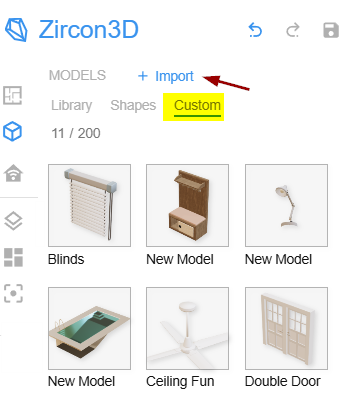
    Hi Mitchell, We don’t have this capability at the moment, but what you’re suggesting is a great idea. Allowing users to add simple 3D primitives (like cubes or basic shapes) to block off areas and attach labels would be very useful in many scenarios. It also aligns well with Zircon3D’s visual philosophy, we intentionally favor simpler, abstract representations to keep data visualization clean and readable, rather than relying on detailed or decorative models. This is something we’ve now added to our roadmap, and we do plan to implement it in a future update. Thanks a lot for taking the time to share the idea, feedback like this really helps shape where the product goes.
  • 0 Votes
    1 Posts
    22 Views
    Tami LiuT
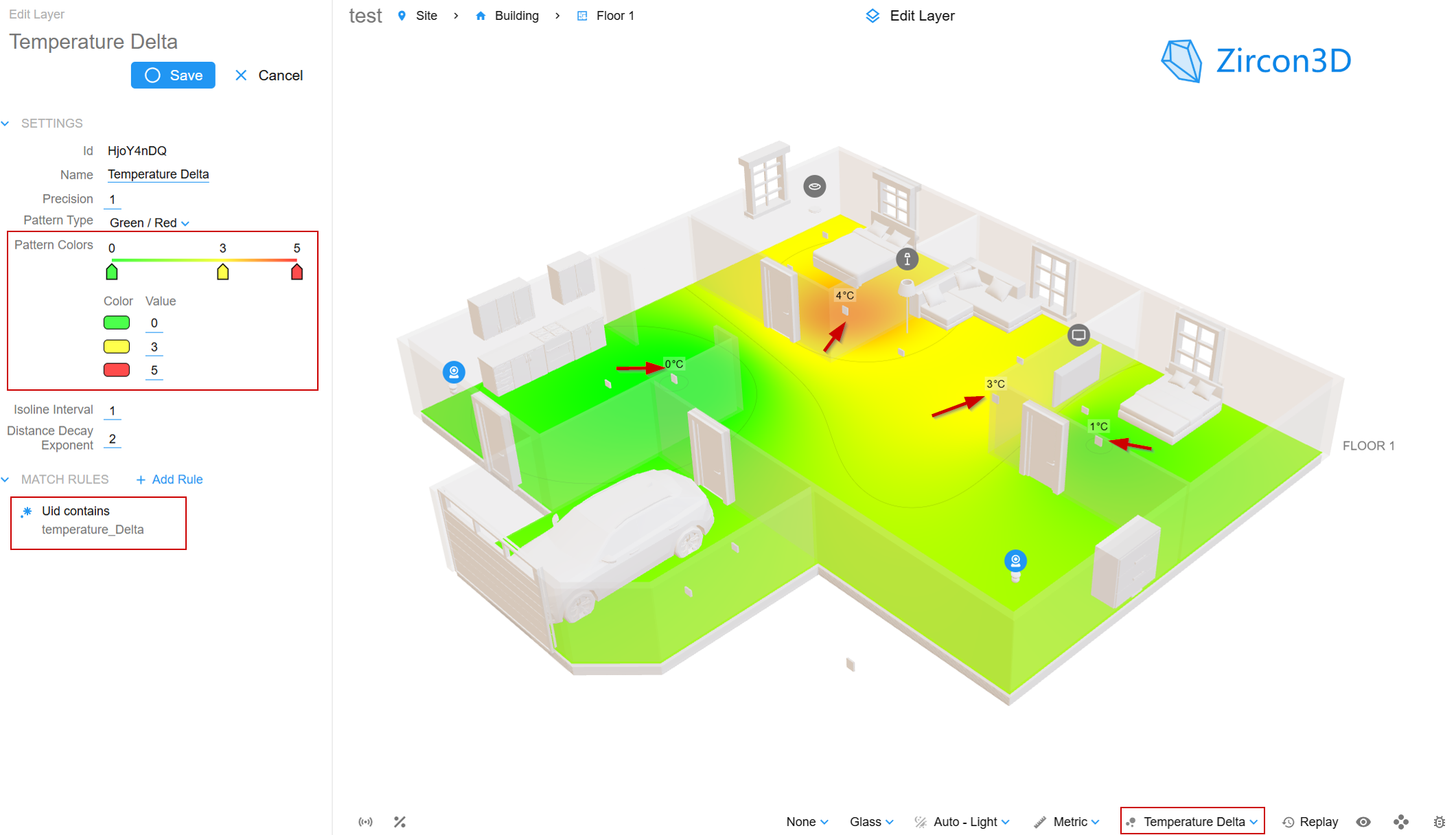
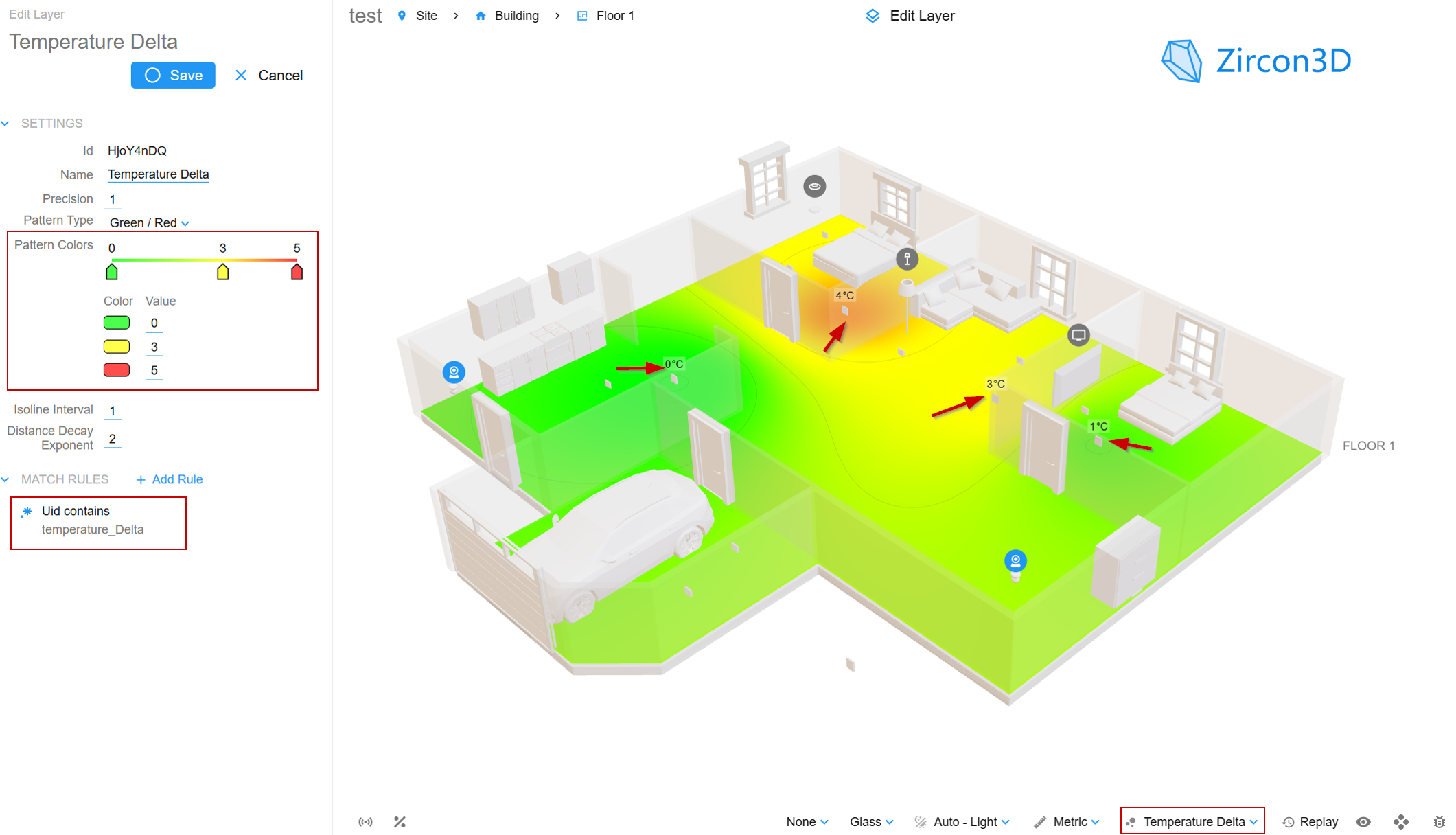
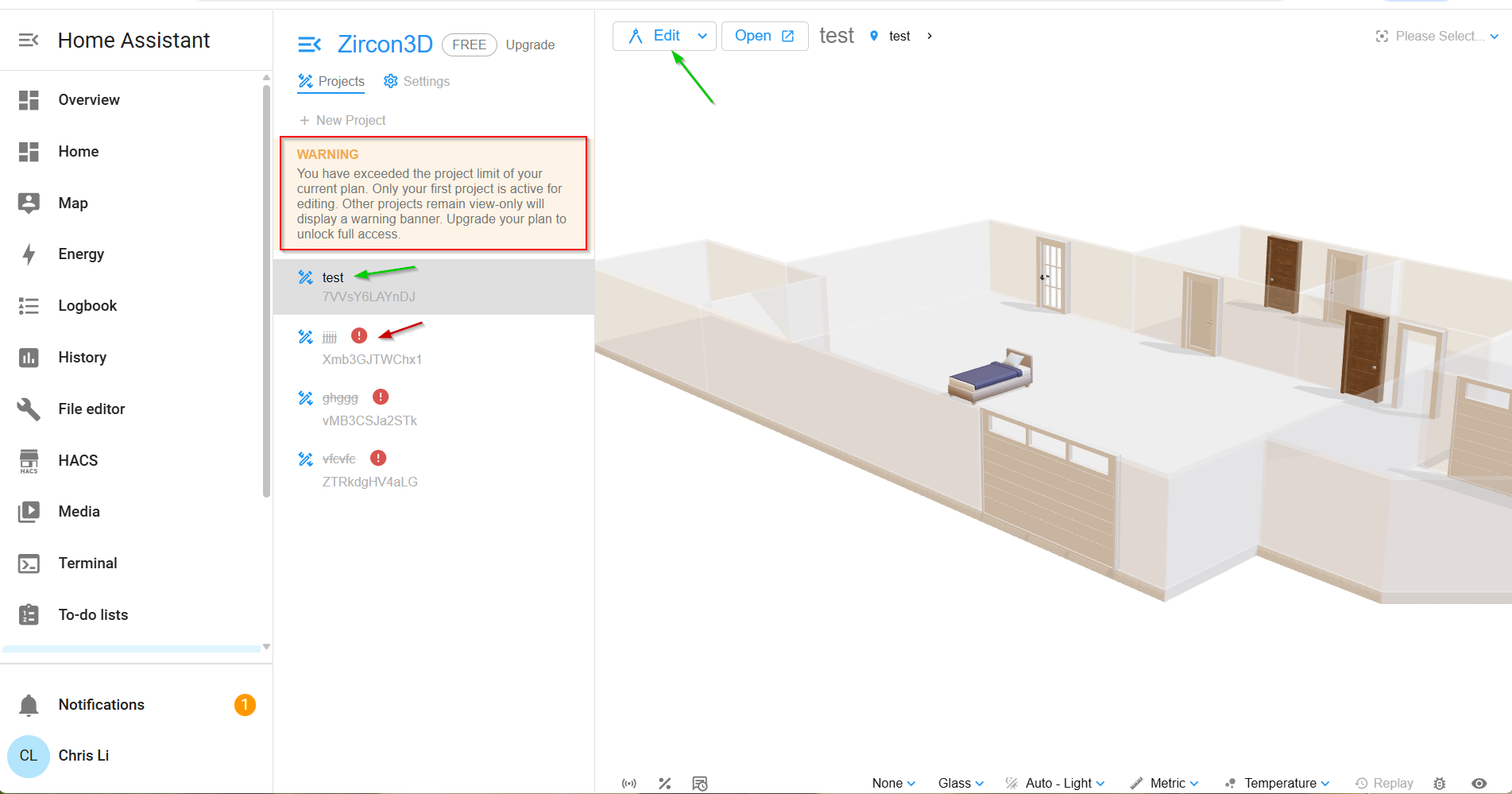
    What happens to my projects if my subscription ends? Short answer: Your projects will NOT disappear. Your data stays safe. Your account will be downgraded to the Free plan, with some limits. After your subscription ends, you’ll be on the Free plan, which includes: 1 editable project Up to 1000 m² building area Up to 25 monitored devices Heatmap view: Temperature (Free plan feature) *This quota is based on the Free plan limits as of January 2026. What if I have more than the Free plan allows? You can still view everything, but editing is limited: Multiple projects You can view all projects You can edit only one project at a time You decide which project to keep editable If it’s not the one you want: Go to Project → More > → Project Settings Delete it The next project becomes editable This lets you choose which project fits the Free plan Area / devices / features over quota Projects that exceed Free limits will show warnings (like in the screenshots) You can: View everything Remove devices, reduce area, or simplify the project Once it fits the Free plan limits, it works normally again Important takeaway ️ No lock-out ️ No data loss ️ No forced deletion ️ You’re always in control of what to keep If you later re-subscribe, all advanced features and higher limits are instantly available again. Example after downgrade In this screenshot, the project “test” is the active project and can be viewed, edited, and deleted. All other projects are automatically switched to view-only mode. They remain fully visible, but editing is disabled until you delete projects or adjust your setup to meet the Free plan quota. [image: 1769699739170-9a9a7df4-6f11-45ba-b8ed-a168eee0994f-downgrade-1.png] View-only projects can be opened and viewed, but not edited; they can still be deleted from Project Settings → Advanced. [image: 1769699747222-812c6788-f318-488c-bc40-60a36d97c6d8-downgrade-2.png]
  • 0 Votes
    14 Posts
    73 Views
    Tami LiuT
    @keiflab Glad to hear it’s working after the update, thanks for letting us know!
  • 401 Unauthorized every time I load

    Questions & Feedback
    3
    0 Votes
    3 Posts
    39 Views
    chrisC
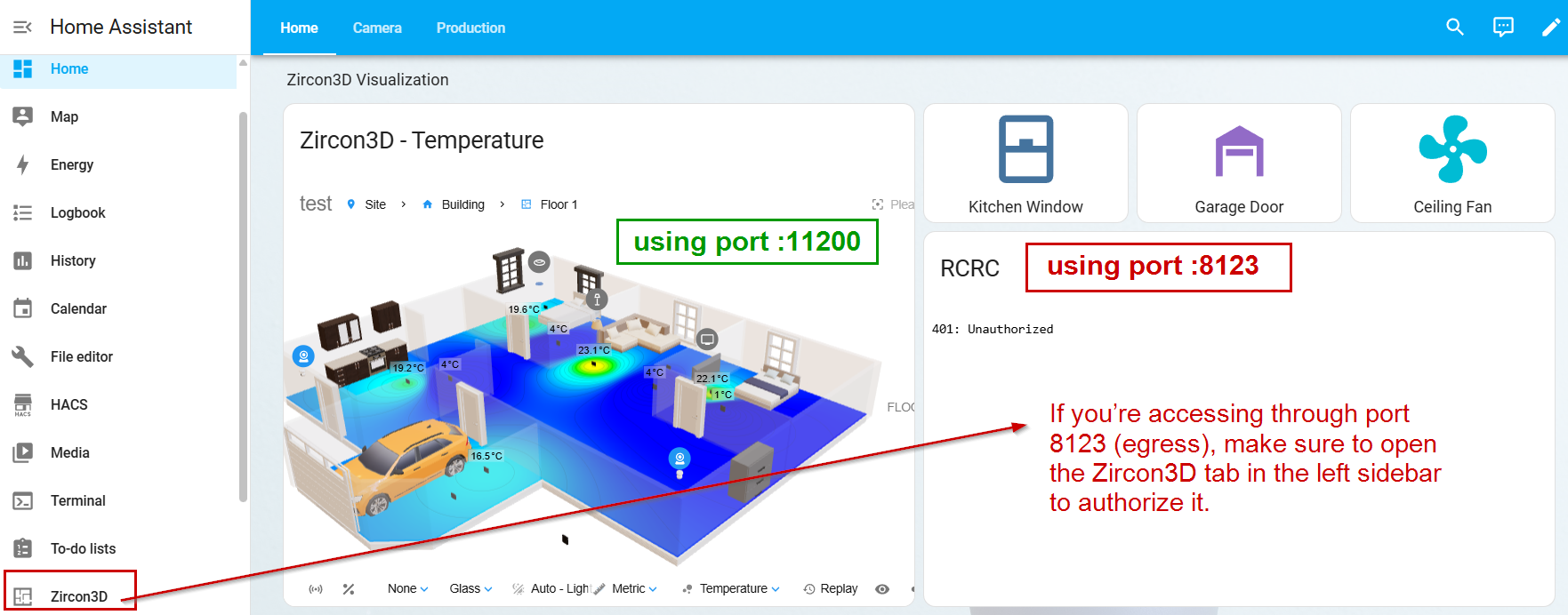
    Hi David, This is unfortunately a known issue related to a Home Assistant API called ingress, which allows our add-on’s UI to communicate with its backend. It appears that the ingress channel is only fully activated after the add-on UI has been opened at least once from Home Assistant. If the UI is accessed via a web card before that initial opening, Home Assistant may raise this error. Workaround As a workaround, our add-on also exposes port 11200, which bypasses Home Assistant’s ingress proxy entirely. For example, instead of using this URL: http://homeassistant.local:8123/api/hassio_ingress/ym-tlrzEEeGSTSNCz7up0Gf3uqHboBU5NGFvBfH7AMY/offline/viewer/?group=haEBrqFXAEIs&project=sLVclZKQrCvP#cam&p=0.00,0.00,0.00&h=40.11&v=39.56&z=400.00|dsp&fs=1.00&fd=tc&wc=1.00&wd=t&od=tc&thm=auto|viz&layer=rkqaX00R You can replace: :8123/api/hassio_ingress/ym-tlrzEEeGSTSNCz7up0Gf3uqHboBU5NGFvBfH7AMY with: :11200 So it becomes: http://homeassistant.local:11200/offline/viewer/?group=haEBrqFXAEIs&project=sLVclZKQrCvP#cam&p=0.00,0.00,0.00&h=40.11&v=39.56&z=400.00|dsp&fs=1.00&fd=tc&wc=1.00&wd=t&od=tc&thm=auto|viz&layer=rkqaX00R Additional notes Home Assistant ingress has caused several issues beyond this one—some users have also reported unstable connections. Accessing Zircon3D directly through port 11200 is generally more stable and can help avoid these ingress-related problems. It’s possible that the Home Assistant team will improve the ingress proxy in the future. Until then, this is currently the most reliable workaround. Please give this a try and let us know if it works for you. Thanks in advance, Chris
  • Why Zircon3D Is Built for High Performance

    Blog & Highlights
    1
    0 Votes
    1 Posts
    24 Views
    Tami LiuT
    Design decisions, technology choices, and what to expect on mobile and tablets Zircon3D is often described as “fast” or “smooth,” but that performance is not accidental. It is the result of deliberate architectural and technical choices made from the very beginning of the project. This article explains why Zircon3D performs the way it does, what technologies make it possible, and why certain interactions especially on phones and tablets are currently more limited, even though the core system itself remains highly performant. A real-time system, not a rendering pipeline Many traditional 3D tools follow a render-first workflow: Design → export → render → view Any change requires reprocessing the entire scene Zircon3D follows a different approach. It is built as a real-time visualization engine, where: The 3D scene is always live Data changes update the scene incrementally There is no export or re-render cycle This is a fundamental reason why interactions feel immediate and responsive. GPU-accelerated rendering with WebGL At its core, Zircon3D runs on a GPU-accelerated WebGL rendering pipeline, which means: Heavy visual work is handled by the graphics card, not the CPU Large scenes remain interactive even with live data updates Animations, lighting, and heatmaps are computed efficiently Rather than relying on pre-rendered images or static textures, Zircon3D renders geometry and visual states dynamically, frame by frame. This is what allows: Smooth camera movement Real-time device state changes Continuous heatmap updates without freezing the UI Data-oriented scene design Zircon3D does not treat the 3D view as a decorative layer. The scene is directly driven by structured data, including: Rooms and spaces Devices and sensors Live state updates from Home Assistant Only the parts of the scene that actually change are updated. This avoids unnecessary recalculation and keeps performance predictable, even as systems grow. Separation of interaction logic and rendering Another key performance factor is architectural separation: Rendering logic is isolated from UI logic State updates are carefully scoped Expensive operations are minimized during interaction This makes actions like: Dragging objects Rotating the view Zooming in and out feel smooth and consistent, even on modest hardware. Why mobile and tablet interactions are currently more limited Zircon3D’s core engine performs well on phones and tablets. However, interaction is a separate challenge from rendering performance. On desktop: Mouse and keyboard provide precise control Complex gestures are easy to distinguish On mobile and tablets: Fingers are less precise Gestures overlap (drag vs pan vs rotate) Screen space is limited Accidental input is more likely Rather than shipping a compromised or frustrating editing experience, Zircon3D currently focuses mobile and tablet usage on: Viewing Monitoring Light interaction This is a deliberate design choice, not a technical limitation of the engine itself. Roadmap: hand-friendly interaction on tablets Tablet-first interaction requires different design thinking. Zircon3D’s roadmap includes: Larger, touch-optimized interaction zones Gesture-aware tools designed specifically for fingers Reduced precision requirements for placement and control Editing modes tailored for tablet usage rather than adapted from desktop This work is planned as a dedicated tablet experience, not a scaled-down desktop UI. High performance as a long-term commitment Performance in Zircon3D is not a one-time optimization. It is a guiding principle that affects: Rendering architecture Data flow design UI structure Feature decisions This is why Zircon3D can: Scale from small homes to complex environments Handle real-time data without freezing Remain responsive even as features grow In summary Zircon3D is high-performance because it is: A real-time system, not a static renderer GPU-accelerated by design Data-driven at its core Architected to minimize unnecessary work While editing on phones and tablets is currently limited by interaction constraints, the underlying engine is already capable and a tablet-friendly, hand-first experience is actively planned. Zircon3D is built not just to look good today, but to remain fast, reliable, and scalable as your system grows.
  • 0 Votes
    1 Posts
    45 Views
    Tami LiuT
    We’ve released Zircon3D v2.0.6 (2026-01-11) with improvements specifically targeting connect / disconnect toggle issues, which may be more noticeable in setups that use cloud services (for example Nabu Casa). What’s new in v2.0.6: Improved WebSocket stability for unreliable or high-latency network environments Added a built-in log viewer to both the Designer and Viewer to make debugging easier If you’ve experienced frequent connection toggling, please upgrade the Zircon3D Proxy add-on to v2.0.6 - this update should be more stable. ️ If the issue still happens after upgrading: When you see the connection (Wi-Fi) icon switching between connected / disconnected Click the icon to open the Connection Panel Click Debug Info and export the log Share the log with us so we can take a closer look [image: 1768242700839-75f5ede6-5522-4f19-8a1b-2a513d05ddf6-image.png] This new debug information will help us identify environment-specific issues much faster. Thanks to everyone who reported this and helped us improve Zircon3D
  • [From Old Forum] Cannot find my sensors

    Questions & Feedback
    10
    0 Votes
    10 Posts
    114 Views
    Tami LiuT
    @Hacker182 Hi, We’ve released an improvement along with a new debug tool in Zircon3D v2.0.6 (2026-01-11). Please upgrade the Zircon3D Proxy add-on to this version, it should be more stable, as we’ve enhanced the WebSocket connection handling. What’s new in v2.0.6: Improved WebSocket stability for unreliable or high-latency network environments Added a built-in log viewer to both the Designer and Viewer for easier debugging If the connect/disconnect issue happens again, please do the following: When you see the Wi-Fi / connection icon toggling between connected and disconnected Click the icon to open the connection panel Click the Debug Info icon Export the log information and send it to us I’ll attach a screenshot to show exactly where to find this option. Thanks again for your patience and for helping us track this down, the new debug data will make it much easier for us to identify what’s happening if the issue persists. [image: 1768242317425-1efed2ef-78b1-4925-a9ef-15409ce15058-image.png]
  • 0 Votes
    1 Posts
    21 Views
    Tami LiuT
    Which 3D Floorplan Tool Is Right for Home Assistant? https://youtu.be/DmW2T6G2TiU For years, many Home Assistant users relied on tools like Sweet Home 3D or traditional CAD software, powerful for drawing, but limited to static images that quickly fall out of sync with a live smart home. In 2026, the game has changed. This article compares Zircon3D with Sweet Home 3D and other popular floor-planning tools, and explains why Zircon3D was designed from the ground up for real-time visualization with Home Assistant. Sweet Home 3D - The “Static Hobbyist” Choice The workflow You design your house, render a nice image, then manually place invisible buttons or overlays in Home Assistant. The problem Even the smallest change, such as moving a lamp or adjusting a wall, requires re-rendering the entire scene from scratch. Simple layout tweaks can easily cost 20–30 minutes, turning quick experiments into a slow, frustrating workflow. What you end up with is a static picture of your home, not a live model that can evolve with your smart system. Your smart home evolves daily, but your floorplan stays frozen in time. Zircon3D advantage: Live interactivity Zircon3D uses a real-time WebGL engine. There’s no exporting and no re-rendering. Move a light, rename a room, or add a sensor and every connected dashboard updates instantly. Your home becomes a living model, not a snapshot. Floorplanner - The “Cloud Designer” The workflow A polished web-based tool with a large furniture library, excellent for interior design and real-estate mockups. The problem Floorplanner isn’t built for smart homes: There is no native integration with Home Assistant, making it difficult to connect real devices or automation data to the floorplan. Displaying live sensor values typically relies on screenshots, manual updates, or hacky workarounds that quickly become outdated. The tool has no concept of device state or animation, so lights, fans, and other devices can’t visually reflect their real-time behavior. It’s a design canvas, not a monitoring system. Zircon3D advantage: IoT-first DNA Zircon3D was designed from day one to work with Home Assistant. That’s why features like: Thermal heatmaps Real-time device state animation (fans spin, lights glow, heaters pulse) Room-aware dashboards are native concepts—not afterthoughts. Matterport - The “High-End Pro” The workflow Scan your house using a dedicated 360° camera and upload everything to a professional cloud service. The problem The overall cost is high, combining specialized scanning hardware with an ongoing subscription fee that can be hard to justify for home or small setups. All scans and models are stored and processed on external servers, meaning you don’t have direct control over where your data lives or how it’s handled. For many Home Assistant users, mandatory cloud storage and processing raise privacy concerns and become a deciding factor against adoption. It looks impressive, but comes with tradeoffs. Zircon3D advantage: Local-first privacy Zircon3D delivers a professional 3D experience without forcing your home data into the cloud. Your floorplan and sensor data stay inside your network, while still offering smooth visuals and real-time interaction. Other tools you might consider (and why they fall short) SketchUp - Powerful, but manual, static, and not automation-aware Planner 5D - Beautiful visuals, but no smart-home integration Traditional CAD tools - Accurate, but completely disconnected from live data All are great at drawing. None are great at living with your home. Why Zircon3D is different Zircon3D isn’t just a 3D floorplan tool, it’s a visualization layer for Home Assistant. Real-time 3D (not exported images) Native Home Assistant integration Heatmaps, dashboards, and device animations Local-first by default, cloud-optional Designed for monitoring, not staging If you want your floorplan to reflect what your home is doing right now, Zircon3D is built for that job. Zircon3D - The “Home Assistant–Native” Choice Zircon3D is a 3D visualization system designed specifically for Home Assistant, focusing on real-time interaction rather than static rendering. It offers a free account to get started, with affordable paid plans that are significantly lower than professional scanning or other design tools, making it practical for both home users and small facilities. Unlike traditional floor-planning apps, Zircon3D runs as a live WebGL engine, allowing layouts, devices, and sensor data to update instantly without re-exporting or re-rendering. It supports features like room-aware dashboards, heatmaps, and device state visualization, all while keeping performance smooth on everyday hardware. Most importantly for many Home Assistant users, Zircon3D follows a local-first design by default, keeping your floorplan and sensor data within your own environment, with cloud features remaining optional rather than mandatory. [image: 1768240845035-30c5f3a0-a3b5-40af-b901-c102001d96d0-image.png] In short If your goal is interior design or real-estate visuals, the classic tools still work well. If your goal is understanding, monitoring, and interacting with your smart home in real time, Zircon3D stands in a category of its own. Your home isn’t static anymore. Your floorplan shouldn’t be either.
  • 0 Votes
    1 Posts
    34 Views
    Tami LiuT
    Hi everyone, Due to a Cloudflare-related outage earlier today, some users may have experienced 500 server errors when signing in or using Zircon3D. Everything is now back online. To fully restore functionality inside Home Assistant, please restart the Zircon3D add-on: Home Assistant → Settings → Add-ons → Zircon3D Proxy → Restart Thanks for your patience! If you notice anything unusual, feel free to reach out. — Zircon3D Team
  • 0 Votes
    1 Posts
    67 Views
    Tami LiuT
    We’re excited to share an update designed specifically for business and commercial users who want to bring advanced 3D visualization into their daily operations. New Business Pricing $28 USD per month $280 USD per year (billed yearly) Our goal is to make professional-grade visualization accessible to small businesses, farmers, commercial facilities, and multi-building environments. Designed for Real Commercial Workloads With the updated Business plan, you can: Create up to 4 projects Each project supports: Unlimited building area Unlimited monitored devices Includes all features from Home Pro Priority support Technical caps exist only to protect system stability. In practice, limits are extremely high and suitable for most business scenarios. Coming Soon: Zircon3D Greenhouse Edition We’re also actively developing the Zircon3D Greenhouse version, designed for: Farmers Growers Small agricultural businesses Multi-span greenhouses Controlled-environment agriculture This edition focuses on production areas, environmental monitoring, climate layers, heatmaps, and sensor-driven 3D insights — making it a perfect fit for modern smart farming. If you're a greenhouse operator or planning a future deployment, this will be especially valuable. Why We Made These Changes Many early business users told us: The previous $80/month price felt too high during early adoption Their buildings and sensor counts exceeded Home Pro limits They needed a simple “high-capacity” plan without locking features behind new tiers So we redesigned the plan to remove those barriers and make Zircon3D easier to adopt in real commercial workflows. Join the Discussion If you'd like to follow updates on the Business Plan or the upcoming Greenhouse edition: Join our Facebook community for ongoing discussions https://www.facebook.com/groups/zircon3d Or leave your questions and thoughts below — we’d love to hear from you Thanks for growing with us! — The Zircon3D Team
  • Disable click & drag

    Questions & Feedback
    2
    0 Votes
    2 Posts
    82 Views
    Tami LiuT
    Thanks for the question! Our controls on mobile and tablet still need improvement, and we’re planning to refine the touch interaction experience in future updates. For now, you can try creating a top-view camera angle, which is much easier to use on mobile/tablet and reduces accidental click-and-drag actions. Here’s how to create a custom view, please check the video at 5:03: https://youtu.be/tm3IbnAiQzA Feel free to share more feedback, it really helps us improve the mobile experience! [image: 1764603928731-0892d4d2-5e1d-4422-b614-eb9fe6437f8d-image.png]
  • 0 Votes
    1 Posts
    36 Views
    Tami LiuT
    Entities in Home assistant not appearing - General - Zircon3D Community.pdf
  • [From Old Forum] Home Assistant OS options

    Questions & Feedback
    1
    0 Votes
    1 Posts
    40 Views
    Tami LiuT
    Home Assistant OS options - Feature Request - Zircon3D Community.pdf
  • 0 Votes
    1 Posts
    36 Views
    Tami LiuT
    How to add custom sensor data to Zircon - General - Zircon3D Community.pdf
  • 0 Votes
    1 Posts
    65 Views
    Tami LiuT
    The Importance of 3D Visualization in Smart Home Applications Smart home technology has revolutionized the way we interact with our living spaces. From controlling lighting and climate to monitoring security, smart devices offer an unprecedented level of convenience and automation. However, as the number of connected devices in a home increases, managing them effectively becomes a challenge. This is where 3D visualization comes into play, offering an intuitive, interactive, and spatially accurate way to monitor and control smart homes. Why 3D Visualization Matters for Smart Homes Traditional smart home dashboards often rely on lists, maps, or static 2D floor plans. While functional, these interfaces can be limiting when dealing with complex setups. A 3D visualization-based system enhances user experience in several ways: Spatial Awareness: A 3D floor plan accurately represents the layout of a home, allowing users to see the exact location of each smart device in relation to furniture, rooms, and walls. Enhanced Control: Instead of searching through menus, users can interact directly with a 3D-rendered environment, clicking on devices to toggle settings, view status, or make adjustments. Improved Troubleshooting: When an issue arises, knowing the precise location of a sensor or smart appliance can help diagnose problems faster. Better Planning and Optimization: When adding new devices, a 3D visualization provides a clear understanding of the space, ensuring optimal placement for smart home efficiency. Displaying and Controlling Smart Devices on a 3D Floor Plan A 3D floor plan takes smart home management to the next level by offering a visually intuitive way to interact with devices. Instead of reading through a list of sensors or scrolling through a 2D map, users can simply navigate a realistic digital twin of their home, selecting and adjusting devices in real time. Lighting & Climate Control: Adjust brightness, color temperature, or thermostat settings by clicking on lights and HVAC units in the 3D space. Security & Surveillance: View camera feeds, check door locks, and monitor motion sensors within a true-to-scale representation of the home. Energy Monitoring: Visualize energy consumption per room, floor, or specific appliances in an easy-to-understand format. Smart Appliances & IoT Devices: Control smart plugs, speakers, and other devices with a simple click or gesture, improving the overall automation experience. Heatmaps & Environmental Data: With advanced visualization, users can see thermal imaging, humidity levels, and air quality metrics directly on their 3D floor plan. Zircon3D: The Perfect 3D Visualization System for Smart Homes Among the available smart home visualization solutions, Zircon3D stands out as a unique and powerful system designed specifically to integrate with smart devices. What Makes Zircon3D Unique? Highly Realistic 3D Rendering: Unlike generic dashboards, Zircon3D provides an immersive and dynamic 3D floor plan that reflects real-world layouts with accuracy. Interactive Smart Device Control: Users can control their smart home by interacting directly with the 3D environment, making management more intuitive than ever. Heatmaps and Sensor Data Integration: Zircon3D supports visualizing temperature, humidity, air quality, and motion detection as real-time overlays on the floor plan. Multi-Platform Accessibility: The system is available on web and mobile, ensuring seamless control from any device. Scalability from Home to Business Use: Whether managing a single-family home or a commercial building, Zircon3D provides the flexibility to scale visualization needs effortlessly. The Future of Smart Home Interaction As smart home ecosystems grow more complex, 3D visualization will become an essential tool for homeowners and facility managers. By providing an intuitive, interactive, and visually engaging experience, Zircon3D bridges the gap between technology and usability, making smart home control accessible for everyone. [image: 1762380967196-003_w.png] If you're looking to enhance the way you interact with your smart home, Zircon3D offers the perfect solution—a powerful, scalable, and user-friendly 3D visualization platform designed for the future of smart living. Want to learn more? Visit https://zircon3d.com/ to explore how 3D visualization can revolutionize your smart home experience!
  • 0 Votes
    1 Posts
    50 Views
    Tami LiuT
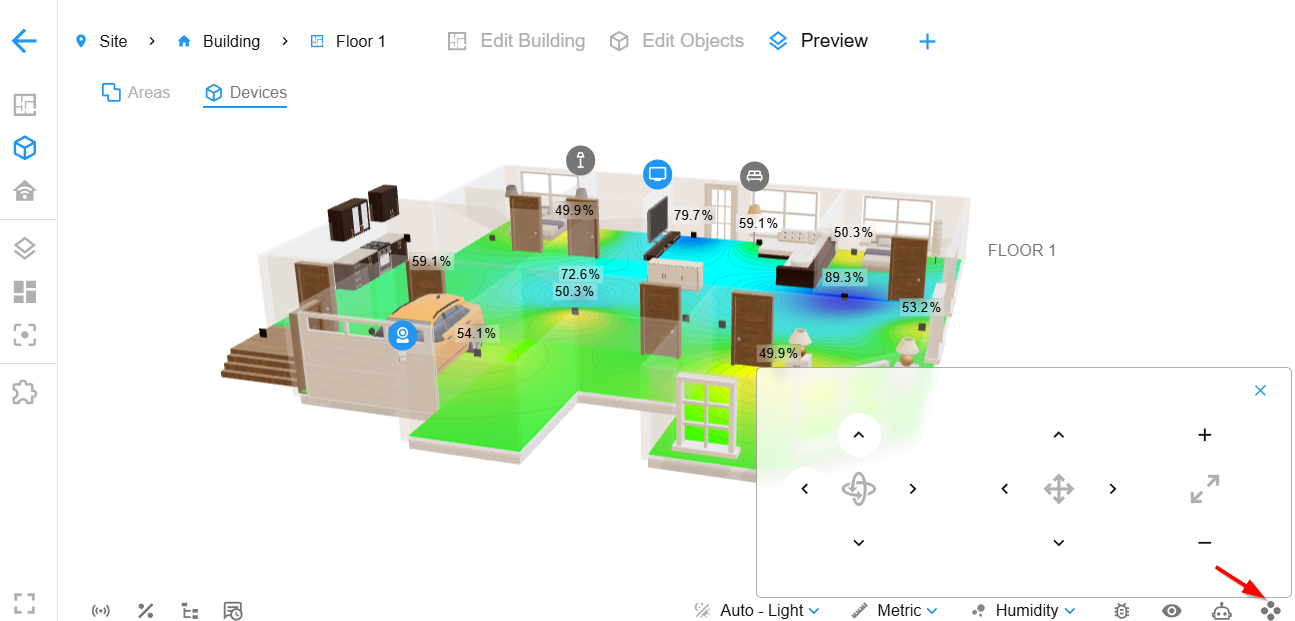
    Understanding the environment inside your home has never been more important — and more intuitive — than now. With Zircon3D, you can view real-time temperature and humidity heatmaps across your entire home in a fully interactive 3D floorplan. This feature goes far beyond traditional dashboards. It transforms your sensor data into a thermal layer you can see and feel — at a glance. [image: 1762380296195-72d3f8763a3e5d3afb06dc0f1dde8c16dd1b8fb2.gif] ️ Why a 3D Heatmap is Better Than Numbers Most smart home systems show environmental data as a list of temperature or humidity values per room. While functional, numbers require mental effort — you have to read, compare, and interpret them in context. But with a 3D heatmap, your brain does less work and sees more. The moment you look at your Zircon3D model, you’ll instantly spot: Hot or cold spots Humid zones (like kitchens, basements, or bathrooms) Areas with sensor failure or drop-off Rooms where climate control may be inefficient Color-coded layers mapped directly onto your 3D space make it obvious what’s happening in your home — no charts or tables required. 🧠 Color is a Language Your Brain Understands Humans evolved to read visual cues. A splash of red feels hot. Blue feels cold. We don’t need to "translate" a Celsius value when we see the heat right on the walls or floors of a room. In Zircon3D, each space is shaded based on sensor data pulled in real time from Home Assistant or your supported smart home platform. Whether you're glancing at your bedroom from your phone or exploring your basement from a tablet, the thermal layer gives you a natural, intuitive sense of space and comfort. ️ Built for Home Assistant — and More Zircon3D integrates seamlessly with Home Assistant via our Zircon3D Proxy add-on, letting you visualize all your temperature and humidity sensors automatically in your existing smart home setup. https://youtu.be/YMsyuJpP2RA And we’re not stopping there — Zircon3D is a standalone system as well, with planned support for additional platforms and OEM integrations. Whether you’re a smart home enthusiast or a developer building your own solution, Zircon3D can turn your raw data into an immersive experience. Use Cases Beyond Just Comfort Smart HVAC tuning: See where hot or cold zones exist and adjust vents or thermostats accordingly. Airflow analysis: Identify stagnant or poorly ventilated spaces. Sensor health: Quickly detect dropped or faulty sensors by the absence of data on the heatmap. Energy efficiency: Cross-reference the heatmap with insulation zones or external weather data. Experience It Yourself Your smart home is more than devices — it's a living, breathing environment. Zircon3D’s real-time heatmap feature helps you see it like never before. Try it now for FREE and bring your floorplan to life: https://zircon3d.com
  • 0 Votes
    1 Posts
    33 Views
    Tami LiuT
    Sensors from home assistant to Zircon3D - General - Zircon3D Community1.pdf
  • 0 Votes
    1 Posts
    76 Views
    Tami LiuT
    We’re excited to announce the release of Zircon3D v2.0, packed with powerful new features and improvements to help you get even more from your smart home visualization. And here’s the good news: starting with this version, every new and existing user gets a 30-day free trial of PRO. More details That means you can experience all the advanced features like Custom Heatmap Layers, Heatmap Replay, and more Pro features for a full month. It’s the perfect chance to explore everything Zircon3D can do before you decide whether to upgrade. New Features & Improvements [Pro] Custom Heatmap Layers Create your own heatmaps for CO₂, Wi-Fi signal, power usage, sunlight intensity, or any other numeric data from Home Assistant. Flexible matching rules and color ranges give you full control. Watch how it works: https://youtu.be/MVT3vvEO9no [Pro] Heatmap Replay Bring your sensor history to life! Heatmap Replay lets you watch changes unfold over time, making patterns and anomalies easier to spot. See it in action: https://youtu.be/P3rhuf6buDk Enhanced Viewer – Fully Configurable View Profiles Save and reuse your preferred perspectives with View Profiles. Adjust angles, overlays, layers, and visual styles, then display your views directly in Zircon3D or embed them into your Home Assistant dashboard. Learn more: https://youtu.be/Bhc6KOWZwgQ Enhanced Layout We’ve reorganized the UI to make Viewer the central focus. Viewer is now designed for everyday use, navigating, monitoring, and working with your data. While Designer (Edit mode) is mainly for building your project and 3D floorplan. This way, once your floorplan or site is created, you can stay in the Viewer and interact with your system without switching back and forth. Customize Models Models like windows, doors, and furniture can now be resized by scaling, giving you more flexibility to adjust object dimensions and better match your real-world setup. [image: 1762735028432-unnamed-1.gif] Unlimited Dashboards for Free Users Free Plan users can now create as many dashboards as they want - no limits! Expanded Pro Quotas Pro users now get 200 sensors per project and up to 4 projects - that’s 800 sensors total, doubling the previous limit. 30-Day Free Trial of Pro Try all PRO features for free with our new 30-day trial. Explore the full power of Zircon3D before you decide to upgrade. Thank You! A big thank you to our growing community for your support, ideas, and feedback. Zircon3D v2.0 is built on what you’ve been asking for, and we can’t wait to see how you’ll use these new features. Get started today: https://zircon3d.com
  • 🚀 Zircon3D v1.2 is Released

    Announcements & Updates
    1
    1
    0 Votes
    1 Posts
    70 Views
    Tami LiuT
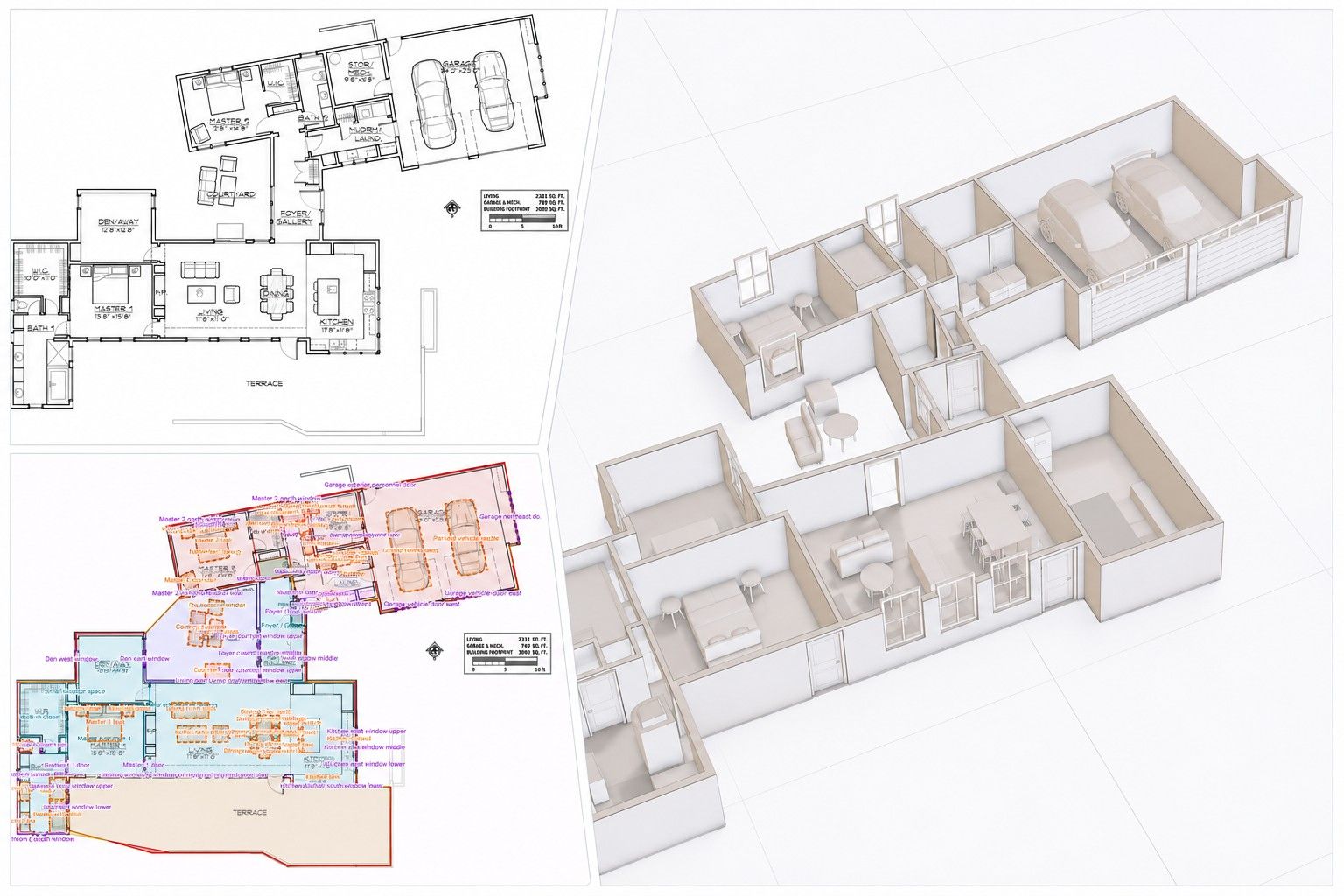
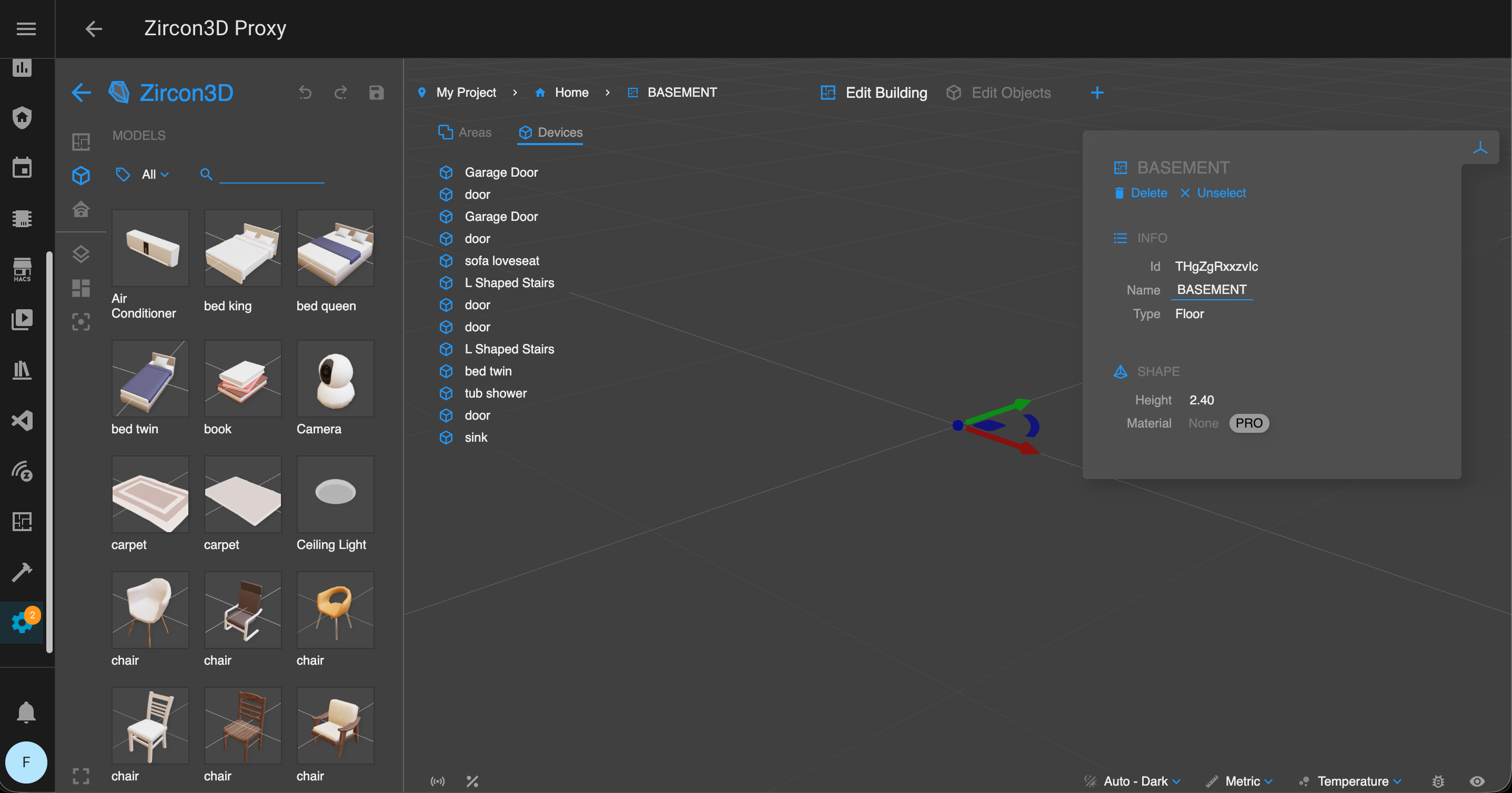
    Hi everyone! Zircon3D v1.2 is now live. This release introduces several new features, including customizable stairs, wall openings, and standalone divider walls. We’ve also added support for wall-mounted items like lights and framed pictures, as well as ceiling-mounted lights. On the Home Assistant side, the enhanced Monitoring panel now supports template sensors with a configured unique_id, KNX integrated entities and other standalone entities from Home Assistant, along with improved search and filter capabilities. Pro users can now change floor materials, and as always, we’ve included various bug fixes and improvements. 1. How to Add Customizable Stairs You can now add fully customizable stairs under Building Parts, with support for straight, L-shaped, and U-shaped designs. To customize a stair: Select the stair and open the Properties Panel on the right. Enable the Override toggle to unlock advanced settings. Adjust the Width, Tread Depth, Riser Height, and the overall Rise and Run. For L-shaped stairs, toggle between Left and Right turns. U-shaped stairs also support Left and Right configurations. This gives you flexible control to design the staircase that fits your layout perfectly. https://youtu.be/qd_3kGRQCvk 2. How to Add Divider Walls and Wall Openings To add a standalone divider or create an opening in a wall, go to the Building Parts tab and open the Rooms sub-tab. Divider Walls: Drag and drop a Divider onto the floorplan to create a separate wall. You can resize, reposition, and rotate it using the position helper to match your preferred layout. Wall Openings: Drag and drop the Opening component onto any existing wall. This creates an opening within the wall, which you can resize by dragging the blue handles. To remove the opening, select the parent room and use the right-side Properties Panel. These tools offer more flexibility for refining your floorplan structure. 3. Wall-Mounted and Ceiling-Mounted Items You can now easily mount objects directly to walls and ceilings: Ceiling Lights: Select a ceiling light and drag it over your floorplan. When you hover near a ceiling, it will highlight, drop the light to mount it in place. Wall-Mounted Items: Wall-mounted lights and framed pictures can be dragged onto any wall. The system will automatically align and attach them to the wall surface. This makes it simple to add decorative or functional elements directly onto your structure. https://youtu.be/qZKqv394oz0 4. Enhanced Monitoring Panel with Search & Filter, Supporting Template and KNX This update brings expanded compatibility to Zircon3D’s Monitoring panel. We now support Template Sensors (with unique_id), KNX integrated entities, and other standalone entities from Home Assistant. When adding your monitored devices to the floorplan, you can: Drag and drop the Home Assistant Entities or devices from the Monitoring Panel directly onto the floor, or Map them to furniture models for a more immersive experience. These features help you build a smarter, more visual representation of your environment. If the sensor represents a temperature value, make sure to also specify: device_class: "temperature" A valid unit_of_measurement (e.g., "°C") Here’s an example configuration: template: - sensor: - name: "temperature_difference" unique_id: "temp_diff" state: > {% set t1 = states('sensor.aqara_temp_humidity_sensor_temperature_2') | float(0) %} {% set t2 = states('sensor.aqara_temp_humidity_sensor_temperature') | float(0) %} {{ (t1 - t2) | round(2) }} unit_of_measurement: "°C" device_class: "temperature" This will allow Zircon3D to recognize and display the template sensor correctly. https://youtu.be/2vl8UVddpx8 5. Floor Material Customization (Pro Users Only) Pro users can now customize floor materials for each space. To change a floor’s material: Select the floor from the Navigation Tree on the left. Then, choose a material from the Properties Panel on the right. This allows greater control over the look and feel of each room in your 3D model. [image: 1762277371811-14757be7-3834-4bfb-85c4-6eb1d5cf7723-image.png] [image: lFX7ZE9Ycrk4nzuWneBZPFKuoxd.jpeg]