Skip to content

Tutorials & FAQ

Step-by-step guides and answers to common questions.
Zircon3D Docs: https://zircon3d.com/docs
Youtube: https://www.youtube.com/@Zircon3D
Facebook: https://www.facebook.com/groups/zircon3d

This category can be followed from the open social web via the handle tutorials-faq@forum.zircon3d.com

11 Topics 11 Posts
  • FAQ: Floorplans

    Pinned
    1
    3
    0 Votes
    1 Posts
    167 Views
    Tami LiuT
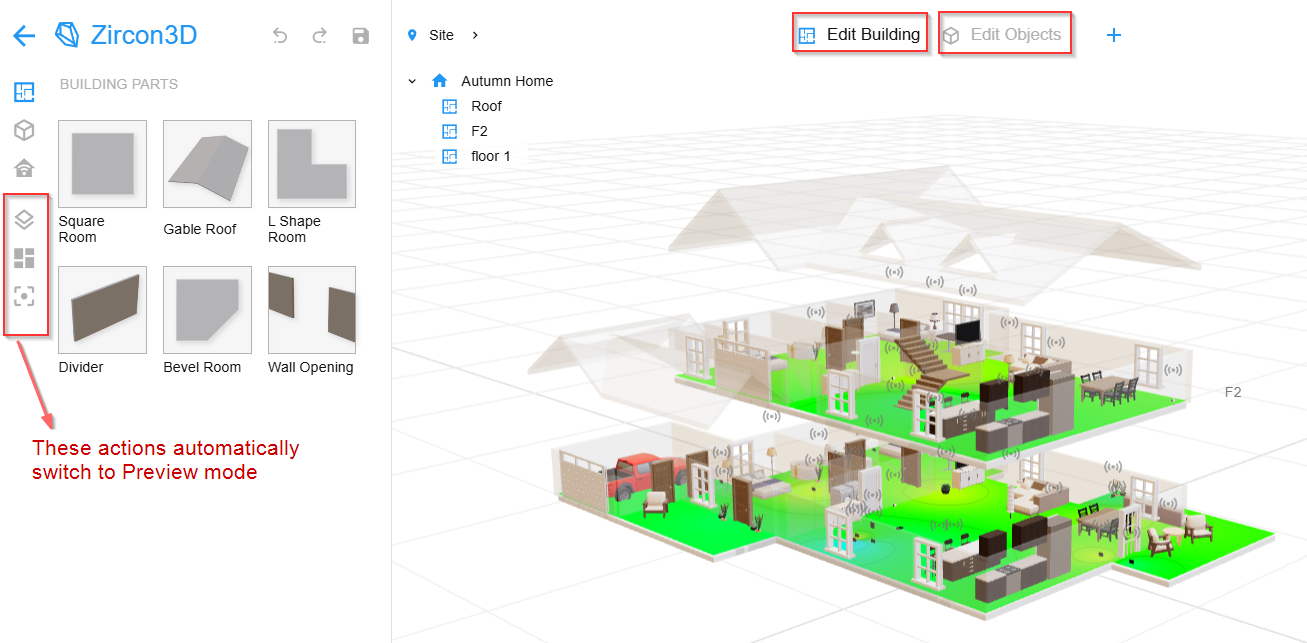
    Overview Zircon3D supports both x86 and ARM architectures (including Raspberry Pi and other ARM64 systems), and is designed with a strong focus on performance and efficiency, even on low-power hardware. For the best experience, we currently recommend doing floorplan design and editing on a desktop or laptop computer, where the web-based designer works best with a mouse. Viewing dashboards and 3D models works well on tablets and phones, and we plan to further improve rotation and dragging interactions on mobile devices in future versions. Understanding the Different Modes: Edit Building, Edit Object, and Preview Edit Building Mode: Add, resize, remove, and modify rooms, floors, and the overall building structure. Edit Object Mode: Adjust the position of furniture, doors, windows, and smart devices. Preview Mode: View-only mode with access to the smart device panel for monitoring and control. Thermal images are exclusive to this mode, and the humidity option is available in the bottom status bar. [image: 1762442186035-894c5a62-fc64-47a2-8bce-0ac88e974a8b-image.png] Q1. How do I add a building or floorplan? Q2. Can I import a floorplan image and generate the layout automatically? Q3. How do I add a door or window to my floorplan? Q4. How do I add a garage door? Q5. Can I add an open door or open window? Q6. Can I add an adjustable stair to my floor? Q7. How can I add an open space or void to my floor? Q8. How do I add a deck? Q9. Can I remove the wall between two rooms, like between the living room and kitchen? Q10. How can I move furniture to another room so it moves with the room later? Q11. Can I change the height of the walls? Q12. Can I change the floor material? Q13. How many floors or buildings can I create in a project? Q14. How can I place a lamp on a table? Q15. Can I change the gap or height between floors? Q16. How can I remove part of a wall or add a separate wall? Q1. How do I add a building or floorplan? Start by creating a new Project and opening the Designer. Switch to Edit Building mode. Click the Plus (+) icon to add a building, enter the required details, and begin adding rooms by dragging them from the Building Parts panel on the left. To add furniture or objects, switch to Edit Objects mode and drag items from the Models panel. Click Save in the top-right corner or use the shortcut Ctrl+S to save your progress. In Zircon3D, you can use the location helper to align rooms. Here’s an example: [image: a43939038e7513a18ab3ec690af3d797dd5087c8.gif] Q2. Can I import a floorplan image and generate the layout automatically? Not yet. Currently, Zircon3D does not support importing layout images or generating floorplans from images or vacuum data. However, these features are on our roadmap. Q3. How do I add a door or window to my floorplan? Switch to Edit Objects mode. Open the Objects panel on the left and select the Doors or Windows category. Drag and drop your selected item onto a wall. Use the Position Helper to adjust its exact placement. Q4. How do I add a garage door? In Edit Objects mode, open the Building Parts panel. Go to the Doors sub-tab. Select the Garage Door and drag it onto the desired wall. Q5. Can I add an open door or open window? Yes. In Edit Objects mode, open the Objects panel. Under the Doors category, you’ll find an Open Door option. Under the Windows category, you’ll find an Open Window option. Drag either onto a wall as needed. [image: 1762442681756-aa046527-c9b1-49fd-8181-7bbad22f5b4a-image.png] [image: 1762734899803-unnamed-4.gif] Q6. Can I add an adjustable stair to my floor? Yes, starting from version 1.2, Zircon3D supports adjustable stairs, available for Pro users only. Before v1.2, stairs were fixed in size like other furniture. In Edit Objects mode, go to the Objects panel and select the Stairs category. You’ll find various types of stairs: U-shaped, L-shaped, and straight. Drag and drop the stair onto your floorplan. On the right-hand Property Panel, toggle on the Override option to reveal adjustable parameters and material options. Q7. How can I add an open space or void to my floor? Add a room to the desired location. Switch to Edit Building mode and select the room. In the Property Panel on the right: Set Fill to None to make it a void. Set the Interior Border to None if you want to remove the walls as well. Q8. How do I add a deck? Add a room where you want the deck. In the Property Panel on the right: Set Fill to Exterior. Set both Exterior Border and Interior Border to None to remove walls and railings. Q9. Can I remove the wall between two rooms, like between the living room and kitchen? Refer to Q16. How can I remove part of a wall or add a separate wall? Q10. How can I move furniture to another room so it moves with the room later? In Edit Objects mode, select the furniture. You’ll see Position Helpers appear. Drag the small blue dot (not the square) to relocate the furniture into another room. Once placed inside a room, it will stick to that room and move with it if the room’s position changes. Q11. Can I change the height of the walls? To change the actual wall height: Select your Floor from the Explorer panel on the left. In the Property Panel on the right, adjust the Height field—either scroll with your middle mouse button or input a number directly. To temporarily change the wall height just for viewing: Click the Eye icon in the bottom-right Status Bar to open View Settings. Adjust the Wall Height there. Note: This change is for viewing only and won’t affect the actual model. Q12. Can I change the floor material? Select your Floor node from the Explorer panel. In the Property Panel, you’ll find a Material selector with various options. Pro users have access to the full material library. Q13. How many floors or buildings can I create in a project? There's no fixed limit on the number of floors or buildings. However, your project quota is based on the total building area, which varies by subscription tier. Visit our pricing page for the latest details. For example, Free users are allowed up to 1000 m², 25 monitored devices, and 1 dashboard. To check your current usage, click the percentage icon in the bottom-left Status Bar to see a detailed quota breakdown. Q14. How can I place a lamp on a table? Enter Edit Objects mode. Select the lamp object. In the Property Panel, set the Position Type to "Free". This enables 3-way adjustment handles, allowing you to freely move and rotate the lamp onto the table or other surfaces. In Zircon3D, the position helper allows movement and rotation along three directions and surfaces. To elevate an object, switch to Edit Object mode, select it, and set its Position Type to ‘Free’ in the right panel. [image: 5382e148adb8b3ace38eb6be1465abc410ae8bd8.gif] Q15. Can I change the gap or height between floors? You can adjust the wall height for a permanent change between floors. For visual-only adjustments: Open View Settings from the Eye icon in the bottom-right. Adjust the Floor Separation value. Note: This setting only affects the current view and won’t be saved to the actual model. Q16. How can I remove part of a wall or add a separate wall? To modify or add walls: Switch to Edit Building mode. In the left panel, open the Building Parts section. To remove part of a wall, drag and drop a Wall Opening onto an existing wall. Use the position helper to adjust its size and placement. To add a separate wall, drag and drop a Divider into the room. You can resize and reposition it using the position helper. To remove a wall opening, select the parent room of the opening. In the Properties Panel on the right, you’ll see a list of all wall openings associated with that room. Click the “×” next to the one you want to remove.

  • FAQ: Monitoring

    Pinned
    1
    1
    0 Votes
    1 Posts
    57 Views
    Tami LiuT
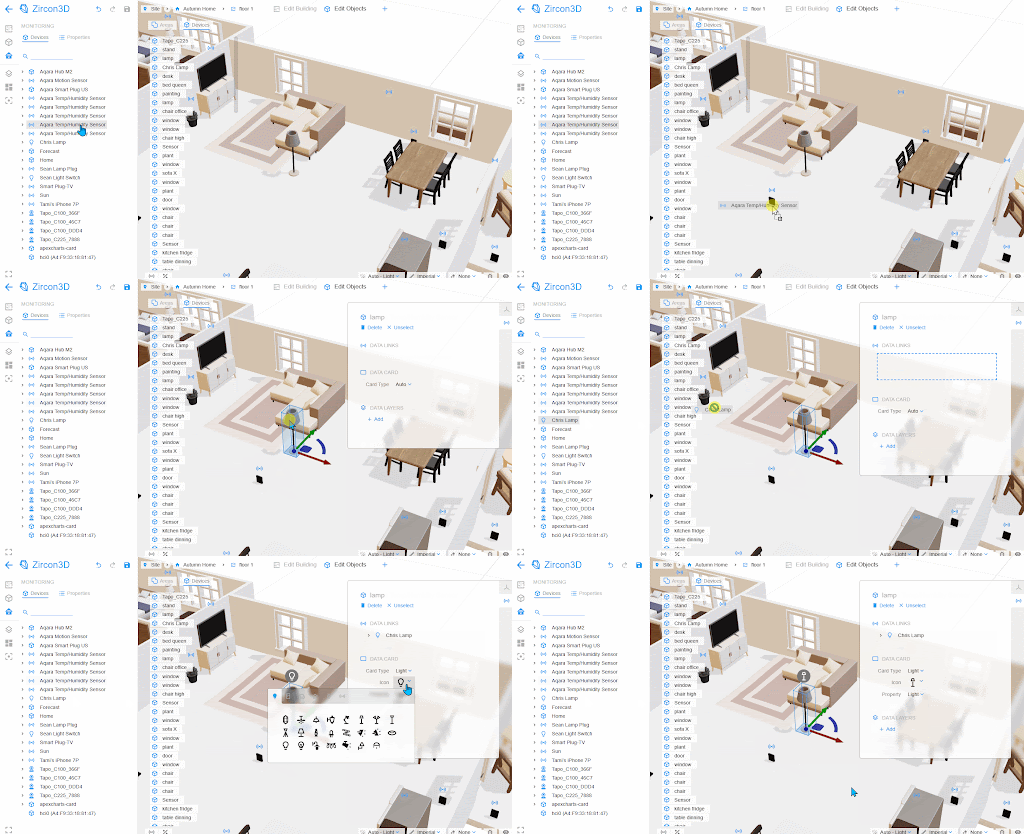
    Overview Zircon3D supports both x86 and ARM architectures (including Raspberry Pi and other ARM64 systems), and is designed with a strong focus on performance and efficiency, even on low-power hardware. For the best experience, we currently recommend doing floorplan design and editing on a desktop or laptop computer, where the web-based designer works best with a mouse. Viewing dashboards and 3D models works well on tablets and phones, and we plan to further improve rotation and dragging interactions on mobile devices in future versions. Integrating Monitoring Devices from Home Assistant If you haven’t installed the Zircon3D Proxy for Home Assistant yet, please follow the instructions in this guide: Install Zircon3D Proxy for Home Assistant After installing the Zircon3D Add-on, monitoring devices from your Home Assistant setup will be automatically retrieved and listed under the Monitoring tab on the left sidebar. To place these devices in your 3D model, you can: Drag and Drop Placement: Simply drag a device from the list and drop it onto a floor to mount it directly. Data Link Mapping: To link a device to a specific 3D object—such as mapping a smart light bulb to a lamp model—first select the 3D furniture item. Then, drag the monitoring device into the Data Link panel on the right to complete the mapping. [image: 1762458215928-unnamed-5.gif]
  • 0 Votes
    1 Posts
    76 Views
    Tami LiuT
    https://youtu.be/3b5FyLn3hFE Learn how to easily install the Zircon3D Proxy add-on in Home Assistant in just a few steps! This add-on allows you to connect your Home Assistant setup with Zircon3D, a powerful 3D smart home visualization system. In this video, you’ll learn: How to add the Zircon3D repository How to install and configure the proxy add-on How to generate and apply your access token How to start building your 3D smart home project in the Designer
  • Video: Creating a Floorplan in Zircon3D

    Pinned
    1
    0 Votes
    1 Posts
    57 Views
    Tami LiuT
    https://youtu.be/yOdTAY-TK0I In this tutorial, we’ll walk you through the process of creating a floorplan in Zircon3D step by step. Start by adding a building, giving it a name, and adjusting its size using the middle mouse scroll. Add rooms using the Building Parts panel by dragging and dropping room templates. Resize them by adjusting the blue dots at the corners or dragging the edges. Customize walls by setting the Exterior Border and Interior Border to define walls. For open spaces like a front porch, set the exterior wall to None. Create an open area by adding a regular room and setting Fill to None in the Property panel to remove the floor. Place doors and windows by selecting them from the Building Parts panel and positioning them as needed. If a roof wasn’t set during building creation, add one by clicking the plus button to create a new floor, setting the Floor Type to Roof, and positioning it above your highest floor. For multi-floor buildings, place additional roof sections where needed and adjust the gable height for sloped roofs. Adjust the view by modifying floor separation, wall height, and display settings. Switch between true color and transparent modes to customize your view. These settings won’t affect the saved floorplan. Once complete, explore different layouts and fine-tune your design in Zircon3D.
  • Video: Creating a Heatmap in Zircon3D – Visualizing Sensor Data

    Pinned
    1
    0 Votes
    1 Posts
    41 Views
    Tami LiuT
    https://youtu.be/YMsyuJpP2RA
  • Video: Creating a Zircon3D Dashboard Card in Home Assistant

    Pinned
    1
    0 Votes
    1 Posts
    61 Views
    Tami LiuT
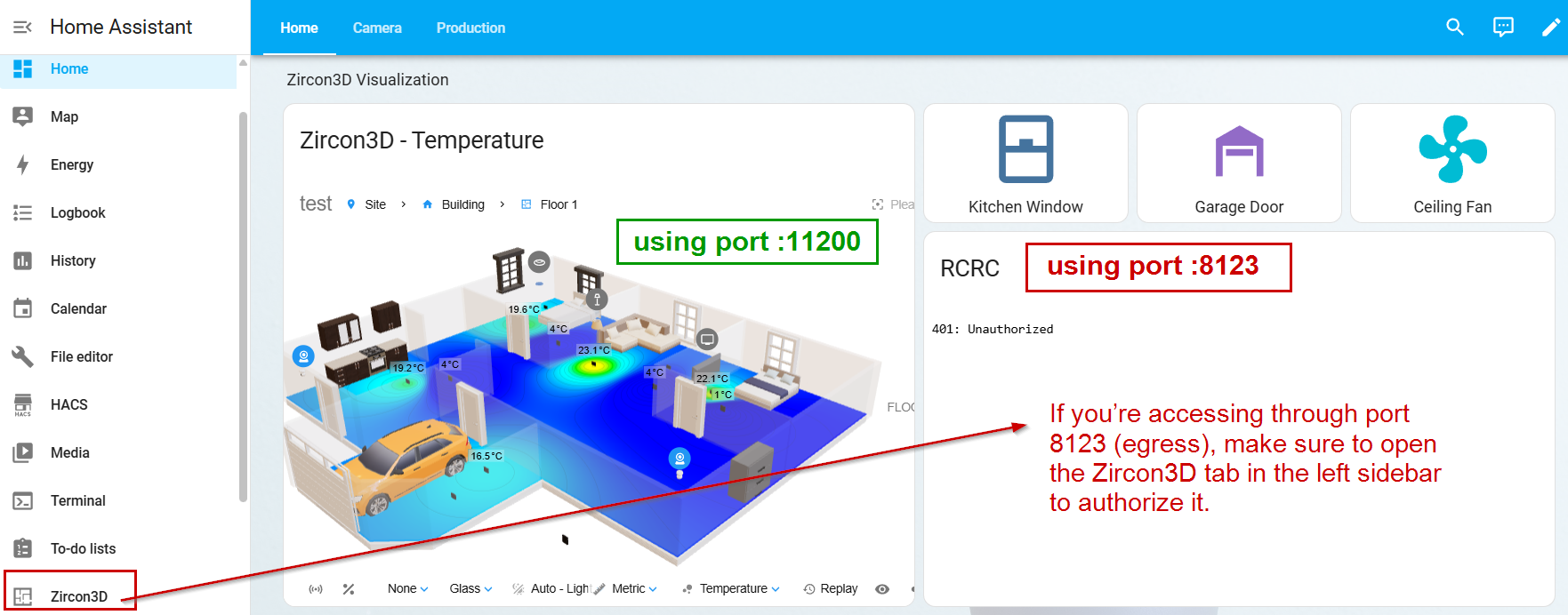
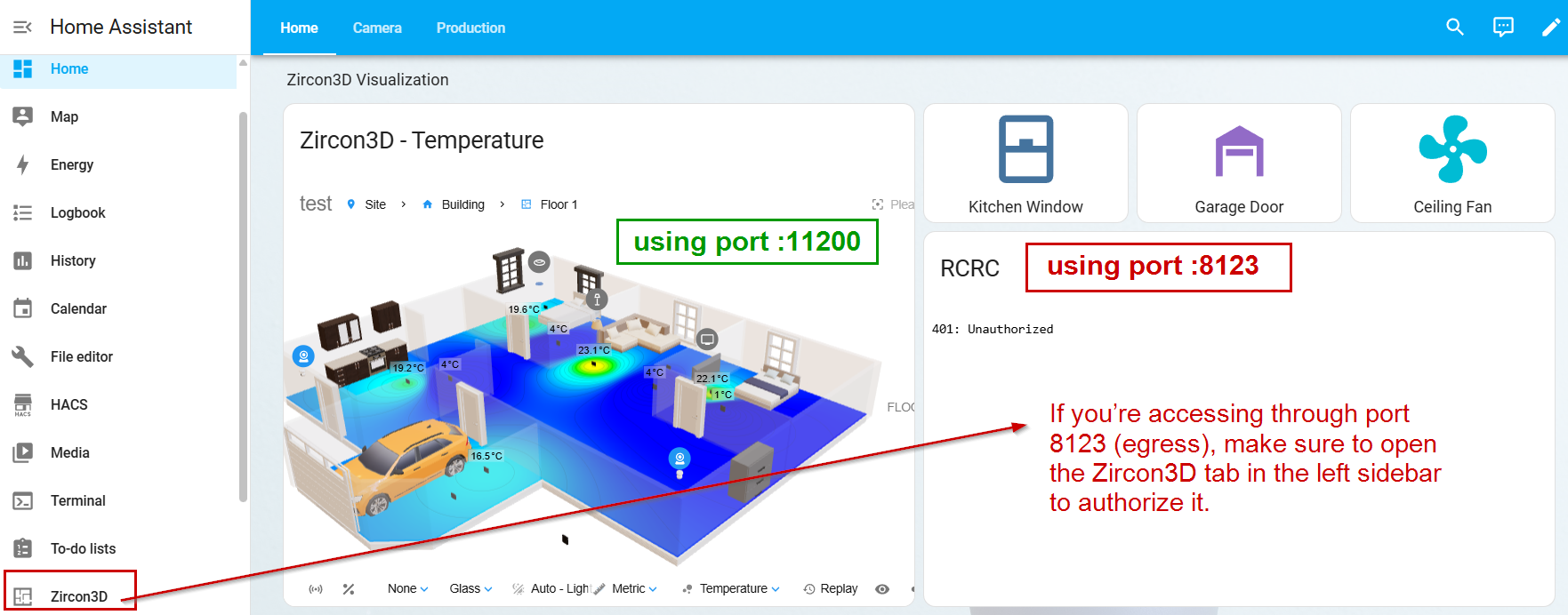
    https://youtu.be/eOVLUAu_rBg Note: If an embedded Zircon3D view doesn’t load, open HA via port 11200, then copy the Zircon3D view link using :11200. This avoids a known ingress authentication issue. In this video, I’ll show you how to add Zircon3D as a dashboard card in Home Assistant using the Sectional Dashboard. You’ll learn how to: Open a Zircon3D project and adjust the viewer settings Copy the viewer URL and add it as a Webpage card in Home Assistant Customize the floorplan view, including top-down mode, themes, and heatmaps Control smart devices directly from the dashboard This method allows you to integrate real-time 3D visualization with Home Assistant for a more interactive and dynamic smart home setup. If you have any questions or feedback, visit the Zircon3D Community at https://zircon3d.com/. Watch the full guide and follow along!
  • How to Unsubscribe and Remove Your Card Information

    1
    3
    0 Votes
    1 Posts
    8 Views
    Tami LiuT
    If you would like to cancel your Zircon3D subscription and remove your saved payment method, please follow the steps below. Step 1 – Log in and Open the Console Go to https://zircon3d.com Click the Console button at the top right. Log in to your account if prompted. [image: 1771183102793-e8f3cbb8-8182-4703-b1bd-aa4622a3b5e6-image.png] Step 2 – Go to Billing In the left sidebar, click Billing. You will see your current subscription plan. Click the Update Plan button. [image: 1771183119158-b25fd2c3-09bf-41f0-9dcf-8142a4eef08a-image.png] Step 3 – Cancel Subscription or Remove Card (Stripe Page) After clicking Update Plan, you will be redirected to the secure Stripe Billing Portal. From there, you can: Cancel Subscription Click Cancel subscription Confirm the cancellation Your subscription will remain active until the end of your current billing period. Remove Payment Method Under Payment Methods, click the ⋯ (three dots) next to your card Select Delete If multiple cards are saved, you can remove them individually. [image: 1771183155472-ae5214b4-0c16-4945-b631-5cb899b0da23-image.png] Important Notes Subscription cancellations take effect at the end of your current billing cycle. Removing your card does not automatically cancel your subscription - please make sure to cancel first if that is your intention. All billing operations are securely handled by Stripe. If you encounter any issues, please contact us as support@lichr.com and we’ll be happy to assist.
  • What happens to my projects if my subscription ends?

    1
    2
    0 Votes
    1 Posts
    22 Views
    Tami LiuT
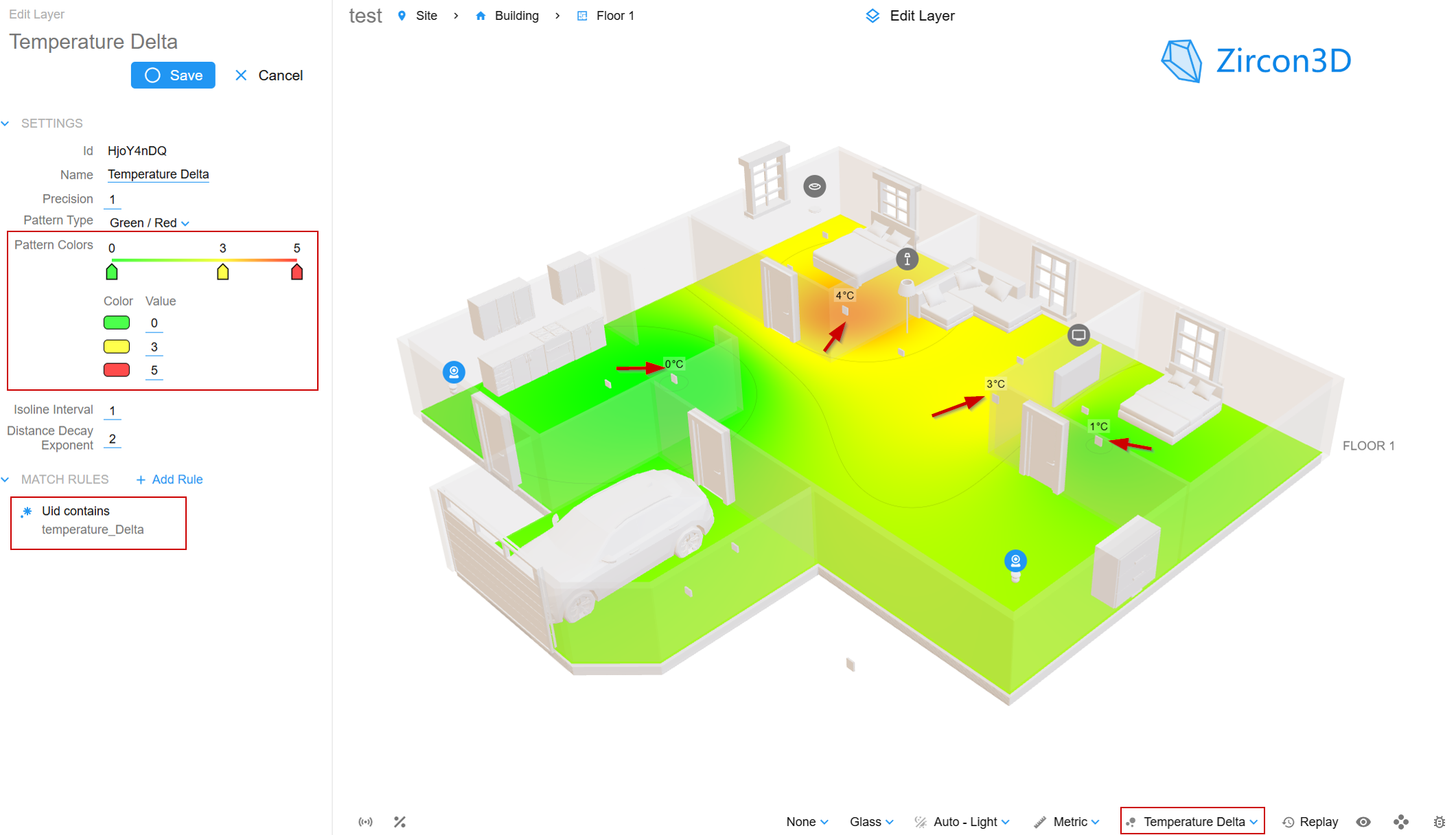
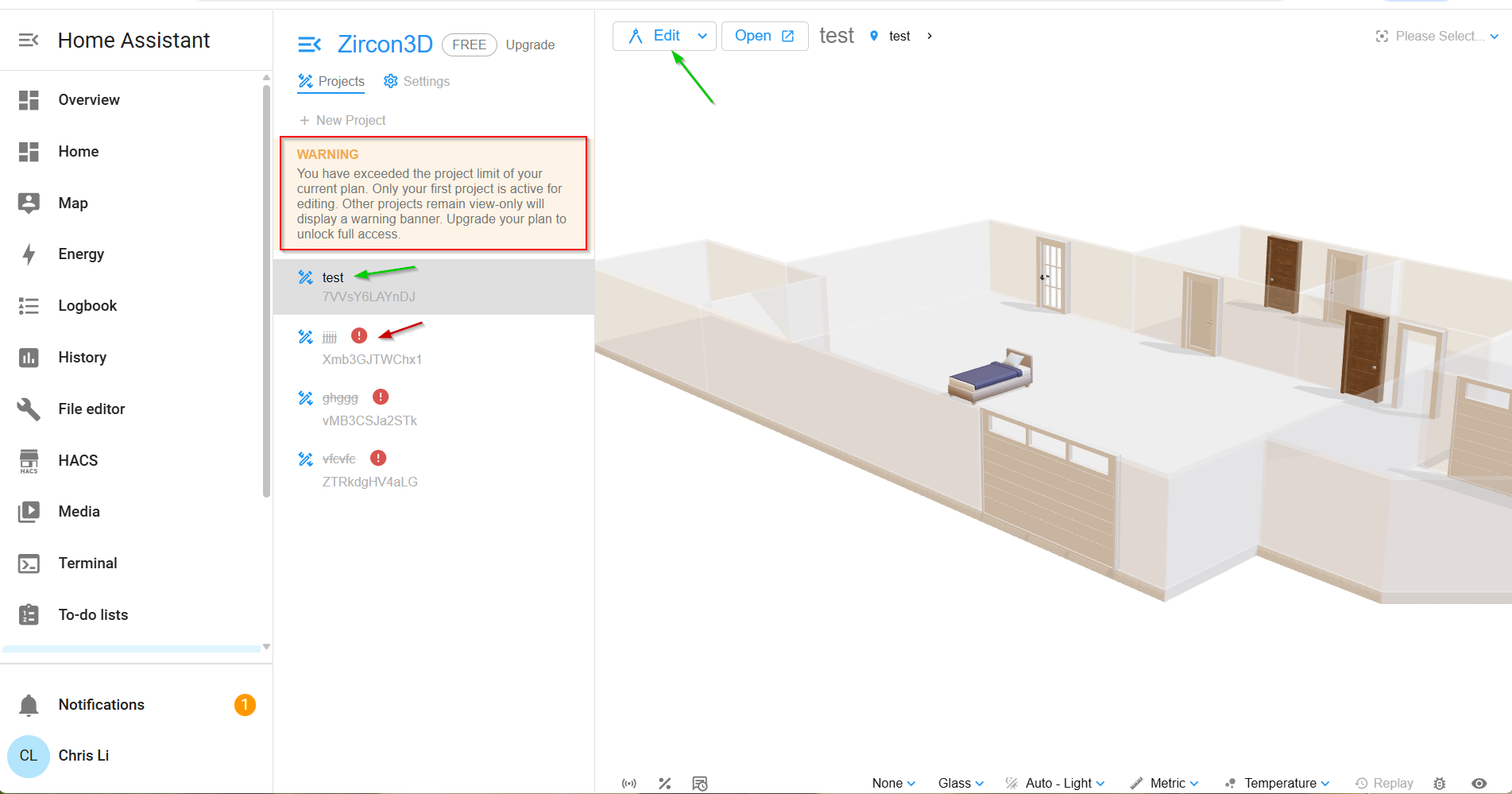
    What happens to my projects if my subscription ends? Short answer: Your projects will NOT disappear. Your data stays safe. Your account will be downgraded to the Free plan, with some limits. After your subscription ends, you’ll be on the Free plan, which includes: 1 editable project Up to 1000 m² building area Up to 25 monitored devices Heatmap view: Temperature (Free plan feature) *This quota is based on the Free plan limits as of January 2026. What if I have more than the Free plan allows? You can still view everything, but editing is limited: Multiple projects You can view all projects You can edit only one project at a time You decide which project to keep editable If it’s not the one you want: Go to Project → More > → Project Settings Delete it The next project becomes editable This lets you choose which project fits the Free plan Area / devices / features over quota Projects that exceed Free limits will show warnings (like in the screenshots) You can: View everything Remove devices, reduce area, or simplify the project Once it fits the Free plan limits, it works normally again Important takeaway ️ No lock-out ️ No data loss ️ No forced deletion ️ You’re always in control of what to keep If you later re-subscribe, all advanced features and higher limits are instantly available again. Example after downgrade In this screenshot, the project “test” is the active project and can be viewed, edited, and deleted. All other projects are automatically switched to view-only mode. They remain fully visible, but editing is disabled until you delete projects or adjust your setup to meet the Free plan quota. [image: 1769699739170-9a9a7df4-6f11-45ba-b8ed-a168eee0994f-downgrade-1.png] View-only projects can be opened and viewed, but not edited; they can still be deleted from Project Settings → Advanced. [image: 1769699747222-812c6788-f318-488c-bc40-60a36d97c6d8-downgrade-2.png]
  • 0 Votes
    1 Posts
    84 Views
    Tami LiuT
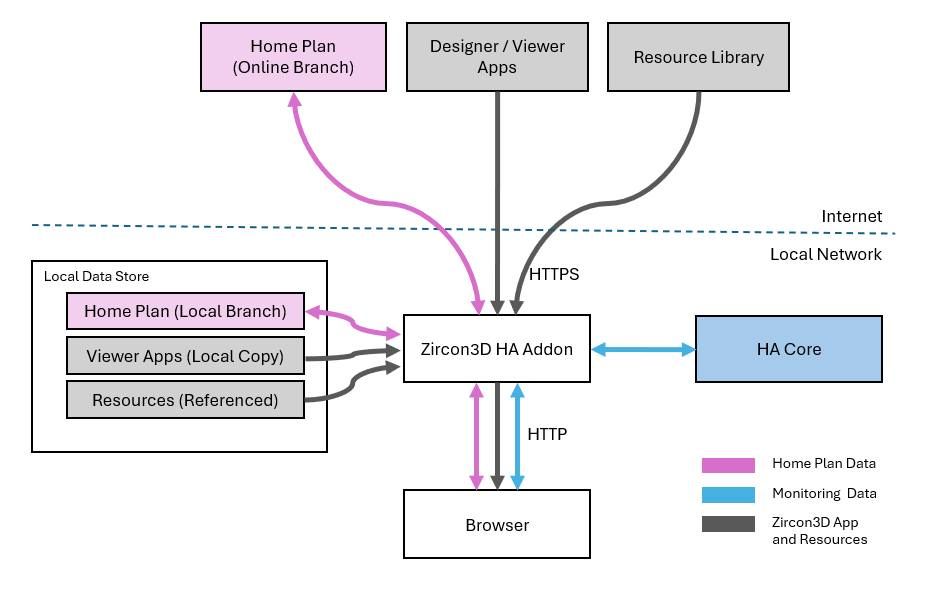
    Own Your Data - You Can Choose Between Cloud Convenience and On-Premise Privacy Monitoring data never leaves user's local network You have full control over where your floorplan data is stored, cloud, local, or both All monitoring data (like sensor readings) stays 100% local inside Home Assistant The cloud version does not display or access any sensor/device state This setup lets users decide how much convenience vs. control they want, without compromising privacy or ownership. We’re also exploring more advanced options for self-hosting everything , including full 3D rendering on local devices or private servers. [image: 1762454434362-472170916_122204971070210827_877832266592100984_n.jpg]
  • Explained: Zircon3D Local vs Cloud Mode

    1
    0 Votes
    1 Posts
    104 Views
    Tami LiuT
    Zircon3D is designed with privacy, flexibility, and resilience in mind. Whether you're running the Home Assistant Add-on or the standalone Docker version, we offer two distinct modes of operation for storing your floorplan data: Local-Only and Cloud-Synced. Why We Built It This Way Our core mission is to provide powerful visualizations, not to collect or store user data. That's why: All sensor and device data stays local at all times. We give you full control over how your floorplan data is stored. You can run Zircon3D entirely offline, including 3D rendering and modeling. Local-Only Mode (Fully Offline) When you create a project in Zircon3D, you can enable the Local-Only toggle. Here's what happens: Your floorplan data is saved only inside Home Assistant. The Zircon3D application are bundled inside the add-on or Docker package. There is no dependency on the cloud. License Activation in Local-Only Mode If you're offline or prefer to stay fully local: Log into your Zircon3D account on our website. Choose your plan or update it. Generate a License Access Token. Paste the token into the add-on settings in HA. That's it. No internet connection is needed after activation. Cloud-Synced Mode (Default) If you leave Local-Only unchecked (the default option), here's how it works: Your floorplan data is saved both locally and in the cloud. This provides an automatic backup. If you reinstall or lose your HA setup, you can easily pull your project from the cloud to restore it. Still: No sensor or device data is sent to the cloud. Ever. What We Store (and What We Don't) Type Cloud-Synced Mode Local-Only Mode Floorplan (project data) Saved locally & cloud Saved locally only Sensor/device states Never stored or leave local network Never stored or leave local network License check Automatic Manual token input Supported Platforms Home Assistant Add-on Docker Installation Both versions contain all required assets and are fully functional offline with the Local-Only option. If you have any questions or want help deciding which mode is right for you, feel free to ask in our community forum. Zircon3D puts you in control of your data — as it should be.
  • 0 Votes
    1 Posts
    46 Views
    Tami LiuT
    Video https://youtu.be/3b5FyLn3hFE Learn how to easily install the Zircon3D Proxy add-on in Home Assistant in just a few steps! This add-on allows you to connect your Home Assistant setup with Zircon3D, a powerful 3D smart home visualization system. In this video, you’ll learn: How to add the Zircon3D repository How to install and configure the proxy add-on How to generate and apply your access token How to start building your 3D smart home project in the Designer