
How to Create a Heatmap with Custom (Pre-Processed) Data in Zircon3D
-
Zircon3D allows you to visualize not only raw sensor data, but also custom computed values using tools like Home Assistant template sensors.
This guide shows how to create a Temperature Delta heatmap, but the same approach works for any custom metric.
What is “Pre-Processed Data”?
Pre-processed data means:
Data that is calculated or transformed before visualization
Examples:
- Temperature Delta (current vs target)
- VPD (humidity + temperature)
- Energy efficiency metrics
- Custom scoring or alerts
Step 1 Create a Template Sensor
In Home Assistant:
template:
  - sensor:
      - name: "Living Room Temperature Delta"
        unique_id: "living_room_temperature_delta"
        unit_of_measurement: "°C"
        state: >
          {{ (
              state_attr('climate.living_room', 'current_temperature')
              - state_attr('climate.living_room', 'temperature')
            ) | abs | round(1) }}
Repeat for other rooms with consistent naming.
Step 2 Create a Heatmap in Zircon3D
- Add a new heatmap layer
- Name it (e.g., Temperature Delta)
- Select your template sensors
Step 3 Use Matching Rules (Recommended)
To scale easily across rooms:
- Use a rule like:
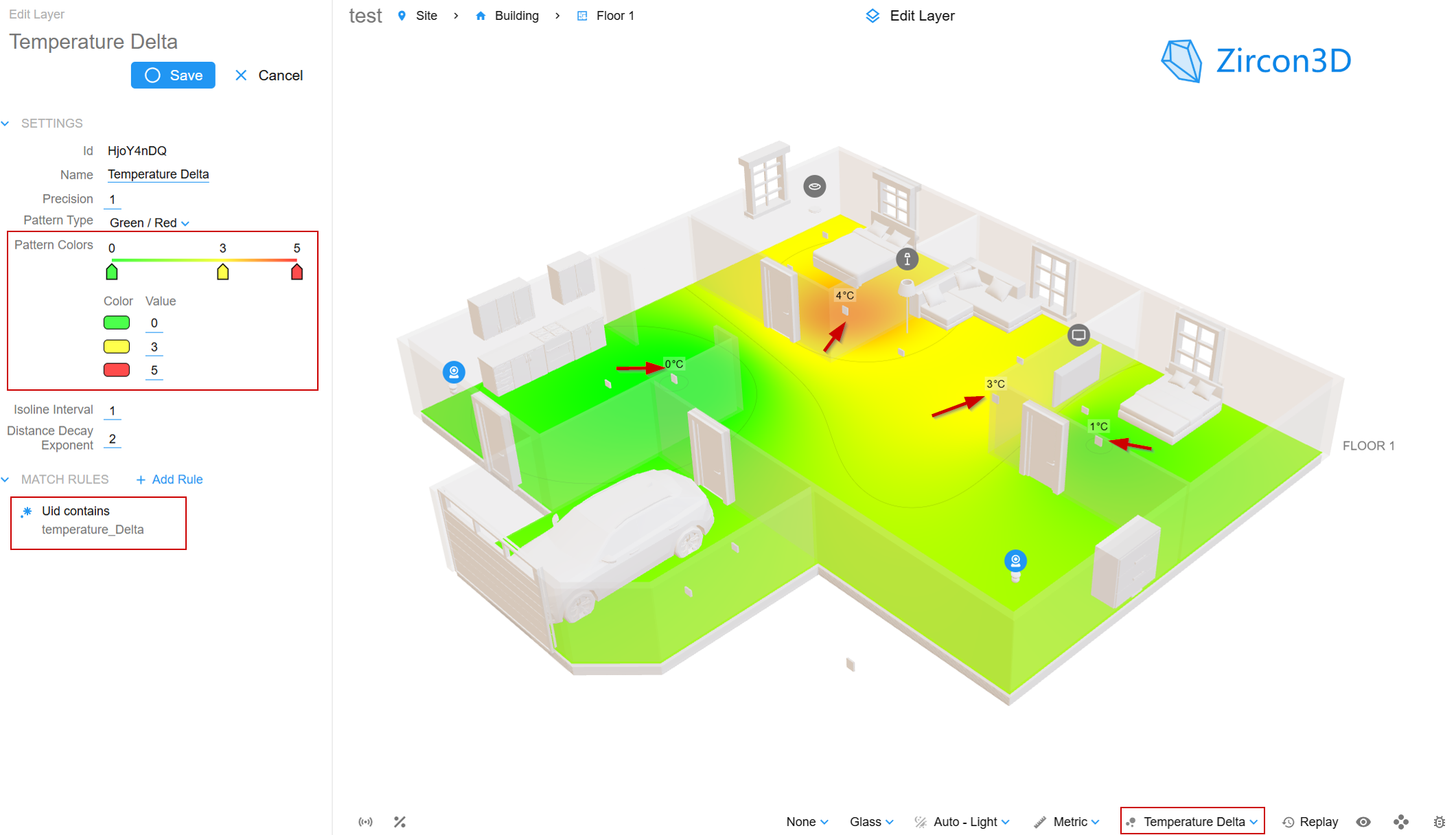
uid contains temperature_delta
This automatically includes all matching sensors.
Step 4 Configure Color Mapping
Example:
- 0°C → Green (good)
- 3°C → Yellow (moderate)
- 5°C → Red (needs attention)
Lower values = better comfort
Step 5 Assign Devices to Floorplan
- Place climate/HVAC devices in your 3D layout
- Or update existing ones to use the heatmap
Step 6 View the Heatmap
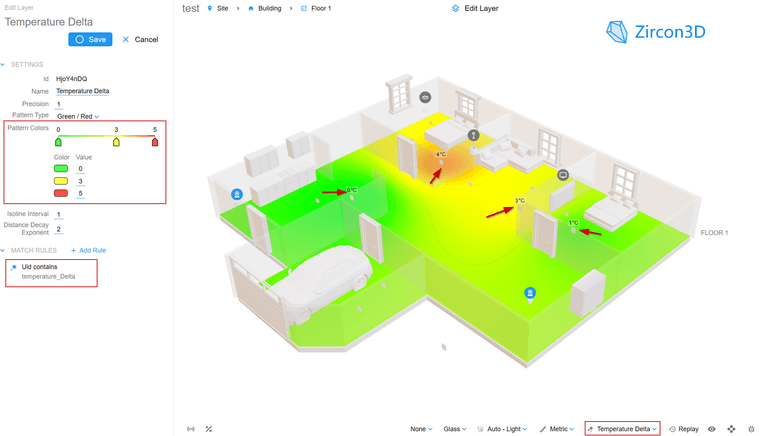
Switch to the heatmap layer to see your data visualized in 3D.
Beyond Temperature Delta
You can apply this method to:
- Greenhouse climate (VPD, humidity)
- Energy usage per zone
- Occupancy and utilization
- Air quality metrics
 Related
- Main article: See Temperature Differences Across Your Home in 3D
- Docs: https://zircon3d.com/docs

Hello! It looks like you're interested in this conversation, but you don't have an account yet.
Getting fed up of having to scroll through the same posts each visit? When you register for an account, you'll always come back to exactly where you were before, and choose to be notified of new replies (either via email, or push notification). You'll also be able to save bookmarks and upvote posts to show your appreciation to other community members.
With your input, this post could be even better 💗
Register Login