
Zircon3D v2.1 – UI Improvements, Heatmap Enhancements, and Better Mobile Controls
-
We’re excited to announce Zircon3D v2.1, bringing several usability improvements, better visualization controls, and refinements based on user feedback. This update focuses on improving the experience on mobile devices, heatmap visualization, and floorplan editing precision.
Below are the highlights of this release.
ou can also check out the video overview of this release here:
 https://youtu.be/3_3LnBEamoQ
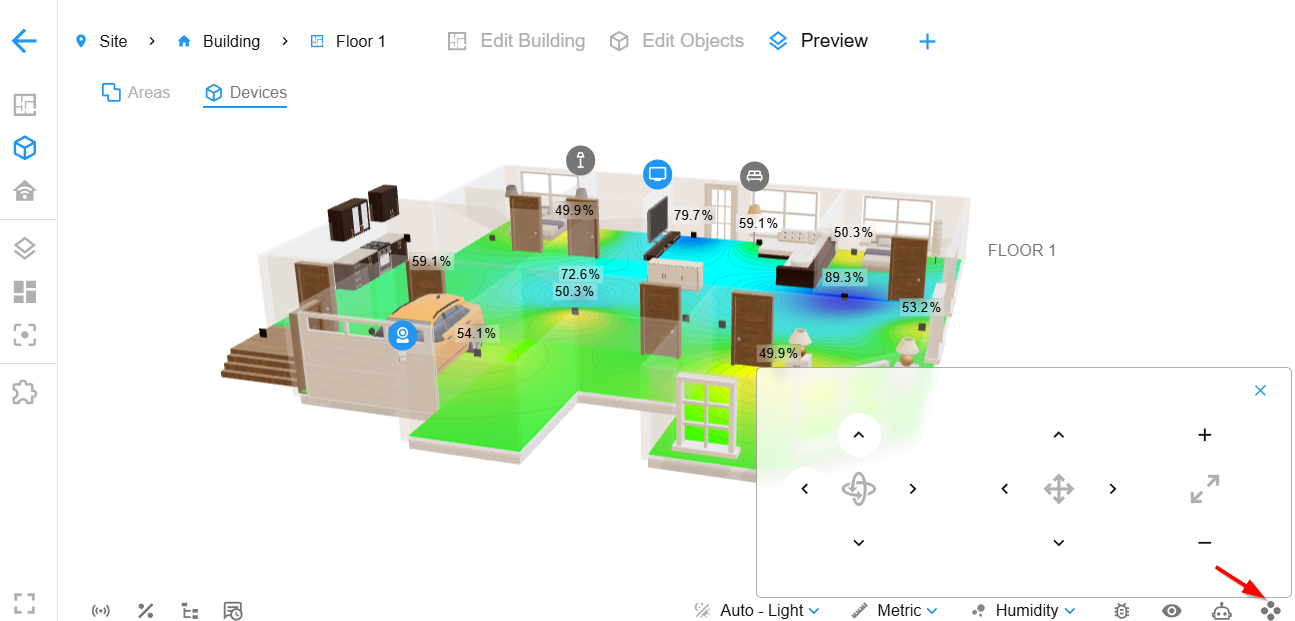
3D View Control Buttons (Mobile & Tablet Friendly)
To improve usability on touch devices, we added on-screen control buttons for common camera actions:
- Rotate view
- Pan the scene
- Zoom in/out
These controls make it much easier to navigate the 3D scene on tablets and phones, especially for wall-mounted dashboards or touchscreen environments.
Data Card Display & Heatmap Overlay Improvements
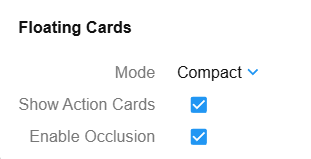
We improved how data cards interact with heatmaps and added new display controls to reduce visual clutter when monitoring your building, including:
- Better readability when heatmaps are active
- Reduced overlapping between heatmaps and data panels
- Cleaner visualization in environments with many sensors
These improvements make the heatmap view clearer and easier to interpret, especially in complex buildings with dense sensor deployments.
Card Display Modes
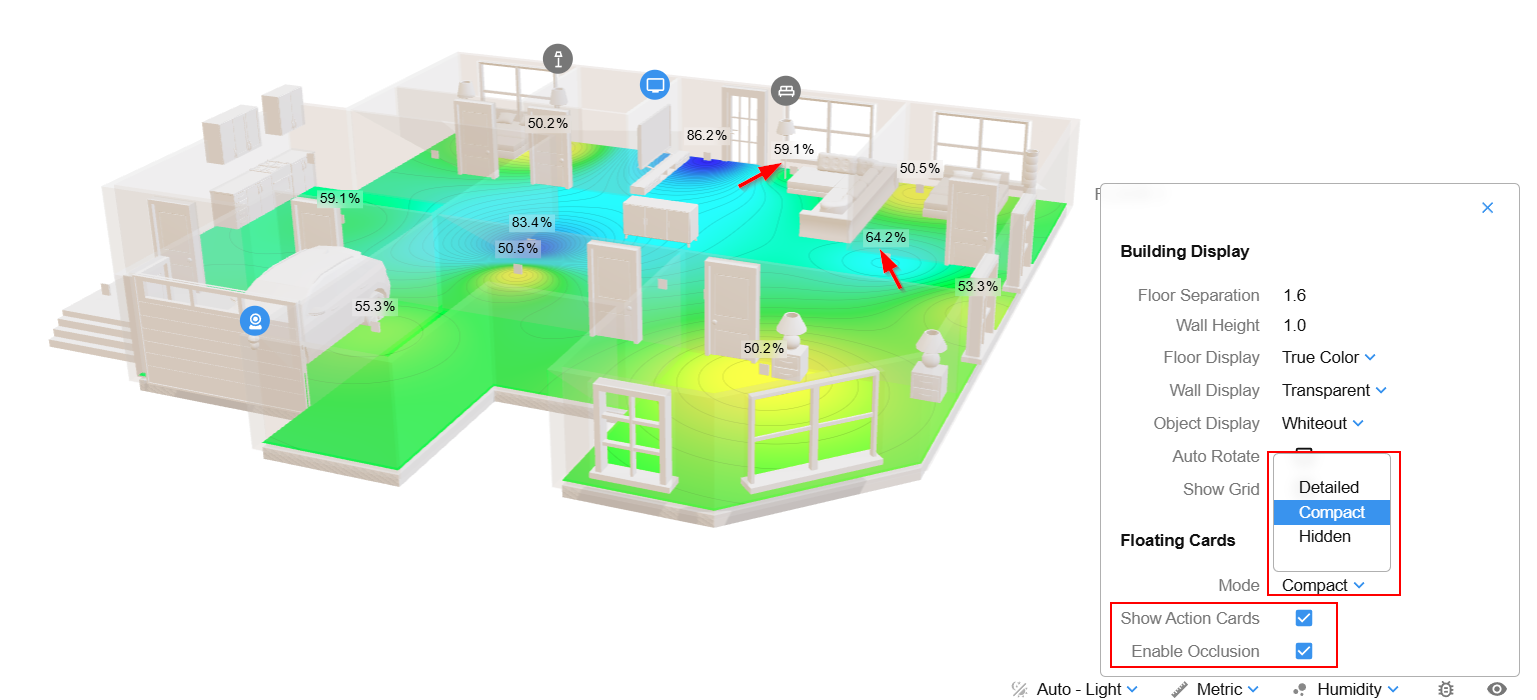
Three modes are available:
- Detailed – Show all sensor data panels (current behavior).
- Compact – Only show data panels related to the currently selected heatmap value.
- Hidden – Hide all floating data panels for a clean heatmap visualization.
This makes it easier to focus on specific environmental metrics without unrelated sensors cluttering the view.
Additional Display Options
Two new options provide further control over what appears in the 3D scene:
- Show Action Cards – Toggle the display of interactive device cards such as switches or cameras. These appear as small icon bubbles in the scene.
- Enable Occlusion – Prevent data panels and action icons from rendering through floors. Elements hidden behind floors will now remain hidden, improving visual realism in multi-floor buildings.
Sensor Icons for Better International Usability
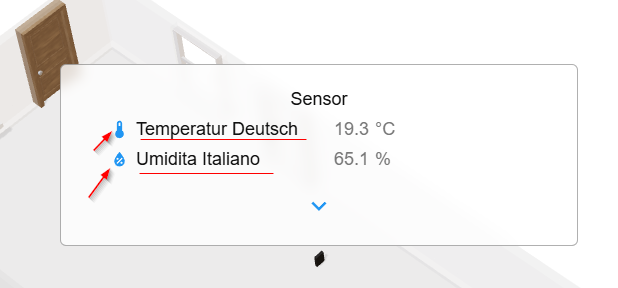
Zircon3D now supports automatic sensor icons for common values such as:
- Temperature
- Humidity
These icons appear in the data panel, making sensor types easier to identify even when entity names are not in English.
Disable Wall/Room Auto-Attach Helper by Holding Shift
When editing floorplans, Zircon3D normally uses an auto-attach helper to snap walls and objects together.
For more precise editing, you can now:
Hold the
Shiftkey to resize rooms freely without auto-attach helper.This allows finer control when adjusting room shapes or sizes.
Preview Button for Quick Viewing
A new Preview button has been added to the top toolbar.
This allows you to instantly preview your building visualization without manually switching to another view tab. You can quickly check how your floorplan and devices appear in the final scene while editing.
This makes the workflow faster when designing your building, letting you switch between editing and viewing at any time with a single click.

Automatic Switching Between Editing Modes
Zircon3D now automatically switches between Building Edit Mode and Object Edit Mode based on the element you select in the scene.
- Building Edit Mode – for editing structural elements such as walls and rooms.
- Object Edit Mode – for editing objects such as furniture, doors, windows, and devices.
This removes the need to manually change editing modes and makes the editing workflow more intuitive when building your home or facility model.
Bug Fixes & Performance Improvements
As always, this release also includes:
- Various bug fixes
- Performance improvements
- General stability enhancements
 Feedback Welcome
Many of these improvements were inspired by community feedback.
If you have suggestions or feature ideas, feel free to share them in the forum.

Hello! It looks like you're interested in this conversation, but you don't have an account yet.
Getting fed up of having to scroll through the same posts each visit? When you register for an account, you'll always come back to exactly where you were before, and choose to be notified of new replies (either via email, or push notification). You'll also be able to save bookmarks and upvote posts to show your appreciation to other community members.
With your input, this post could be even better 💗
Register Login