
How to Unsubscribe and Remove Your Card Information
-
If you would like to cancel your Zircon3D subscription and remove your saved payment method, please follow the steps below.
Step 1 – Log in and Open the Console
- Go to https://zircon3d.com
- Click the Console button at the top right.
- Log in to your account if prompted.

Step 2 – Go to Billing
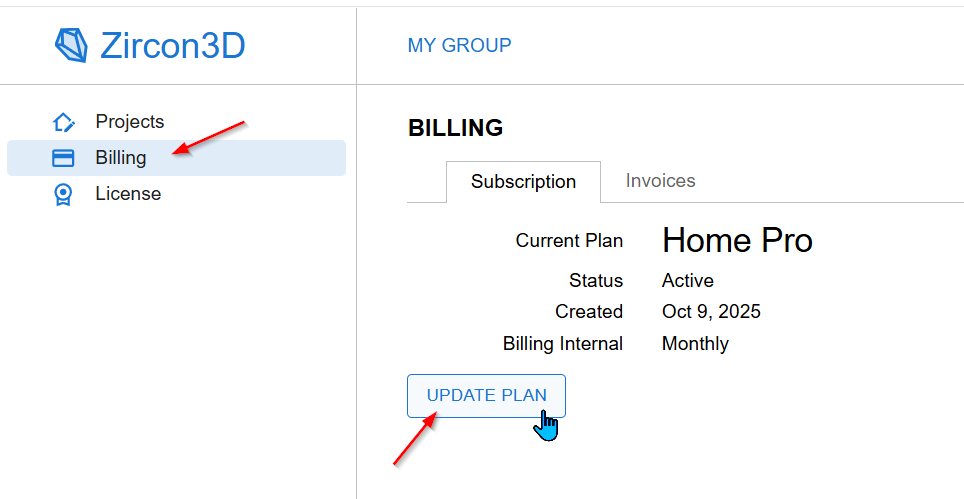
- In the left sidebar, click Billing.
- You will see your current subscription plan.
- Click the Update Plan button.
Step 3 – Cancel Subscription or Remove Card (Stripe Page)
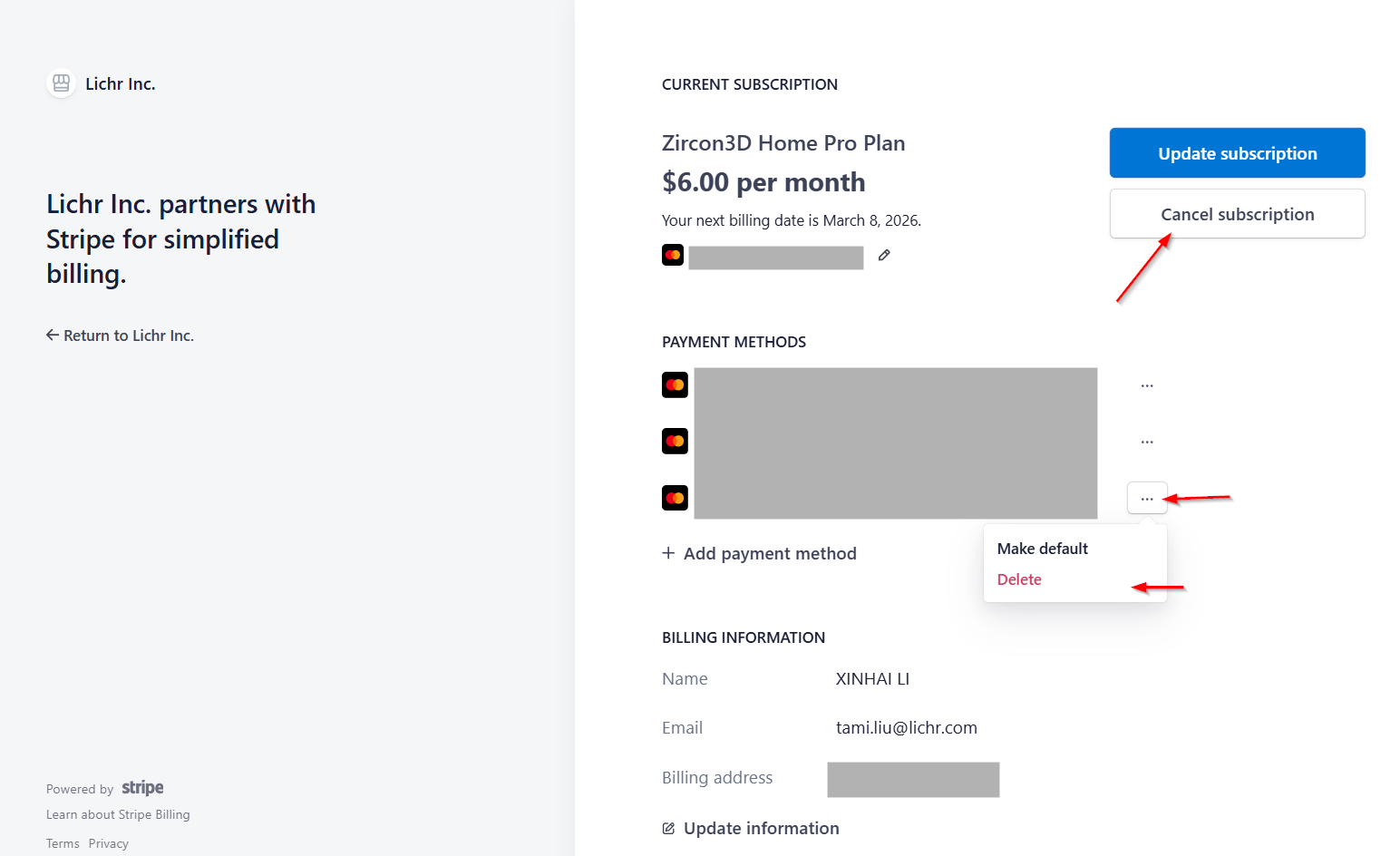
After clicking Update Plan, you will be redirected to the secure Stripe Billing Portal.
From there, you can:
Cancel Subscription
- Click Cancel subscription
- Confirm the cancellation
Your subscription will remain active until the end of your current billing period.
Remove Payment Method
- Under Payment Methods, click the ⋯ (three dots) next to your card
- Select Delete
If multiple cards are saved, you can remove them individually.
Important Notes
- Subscription cancellations take effect at the end of your current billing cycle.
- Removing your card does not automatically cancel your subscription - please make sure to cancel first if that is your intention.
- All billing operations are securely handled by Stripe.
If you encounter any issues, please contact us as support@lichr.com and we’ll be happy to assist.

Hello! It looks like you're interested in this conversation, but you don't have an account yet.
Getting fed up of having to scroll through the same posts each visit? When you register for an account, you'll always come back to exactly where you were before, and choose to be notified of new replies (either via email, or push notification). You'll also be able to save bookmarks and upvote posts to show your appreciation to other community members.
With your input, this post could be even better 💗
Register Login